Easy weekly planning in Notion
Planning your week in Notion doesn’t have to mean building a complicated system from scratch.
Easy weekly planner is a free, automated Notion template that lets you schedule your tasks not only by day, but also by time of day (morning, afternoon, evening). And it comes in very handy! Here’s how it works. 👇
(pssst: the video tutorial is also available at the end of this article.)
1. Get the template from Notion Marketplace
Add the template to your personal workspace by downloading it for free here.
Once downloaded, it will appear in your Notion pages (typically in your private section, depending on your setup). Open it.
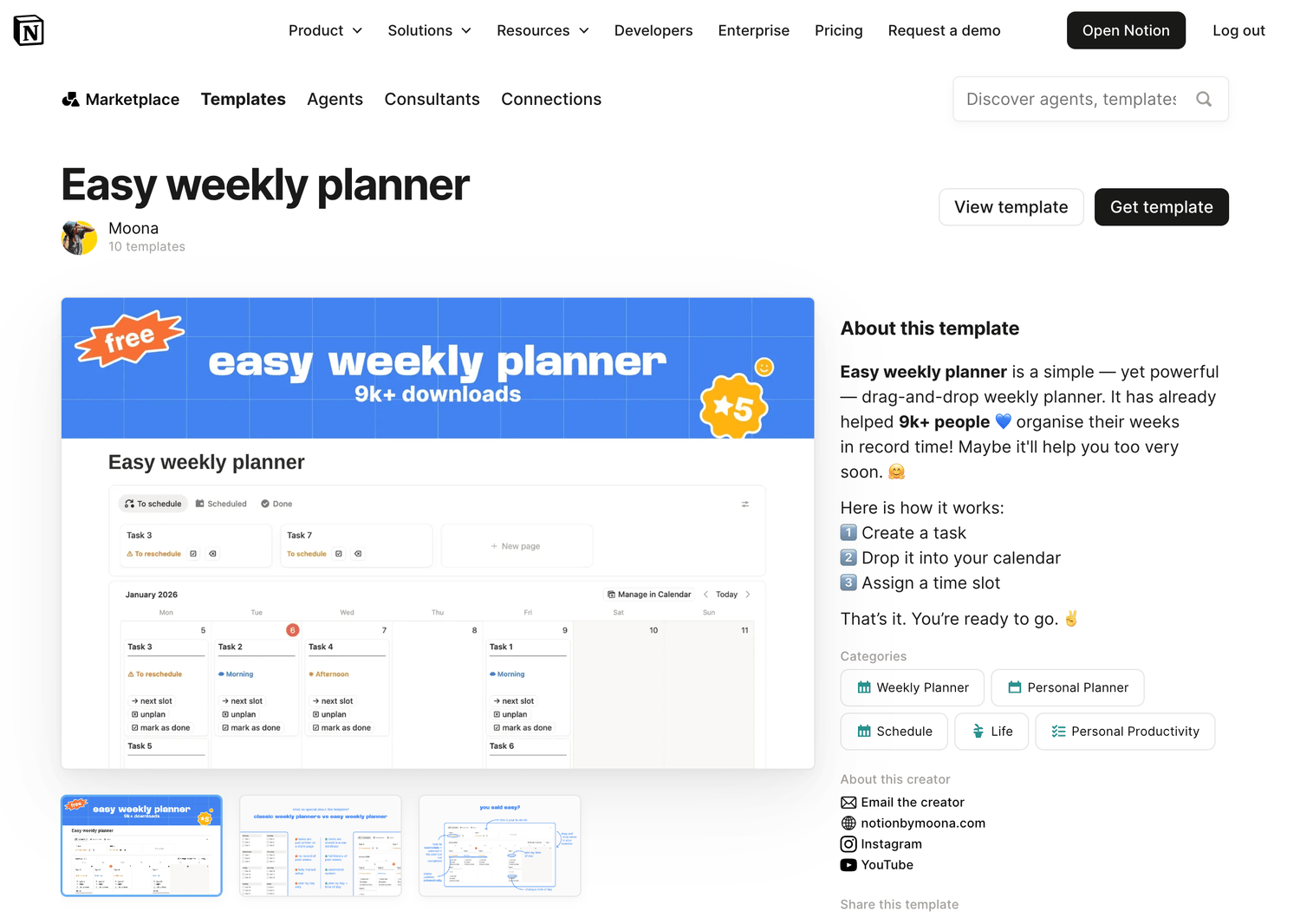
2. What’s inside your planner
The template is intentionally minimal and focused. It has two main sections:
👉 A task list organised in 3 tabs: to schedule, scheduled and done
👉 And a calendar where you can plan your week visually, with both a weekly view and a monthly view
This combination is what makes weekly planning feel effortless: you capture tasks in a list, then place them into your calendar when you’re ready.
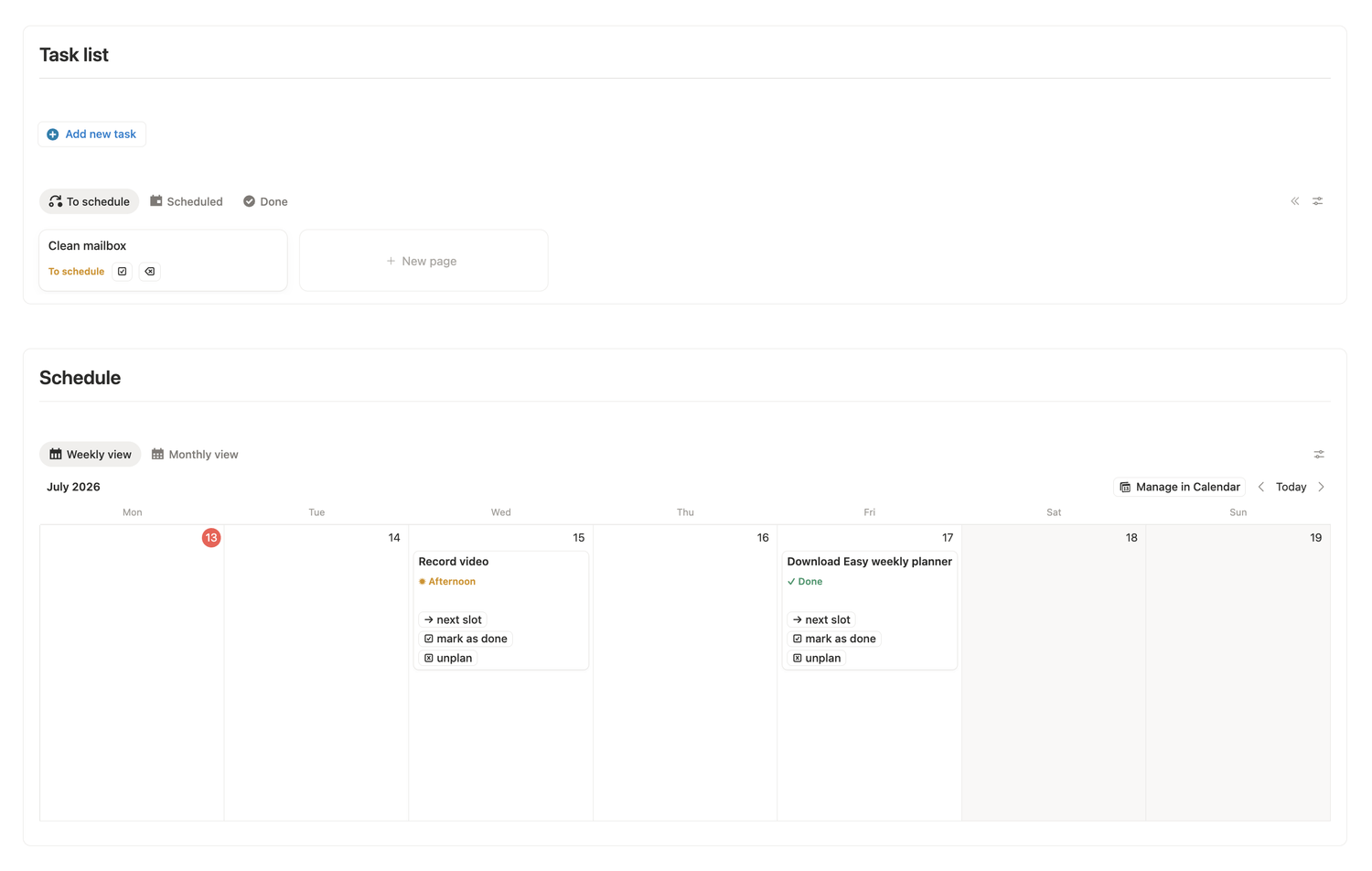
3. Create a task
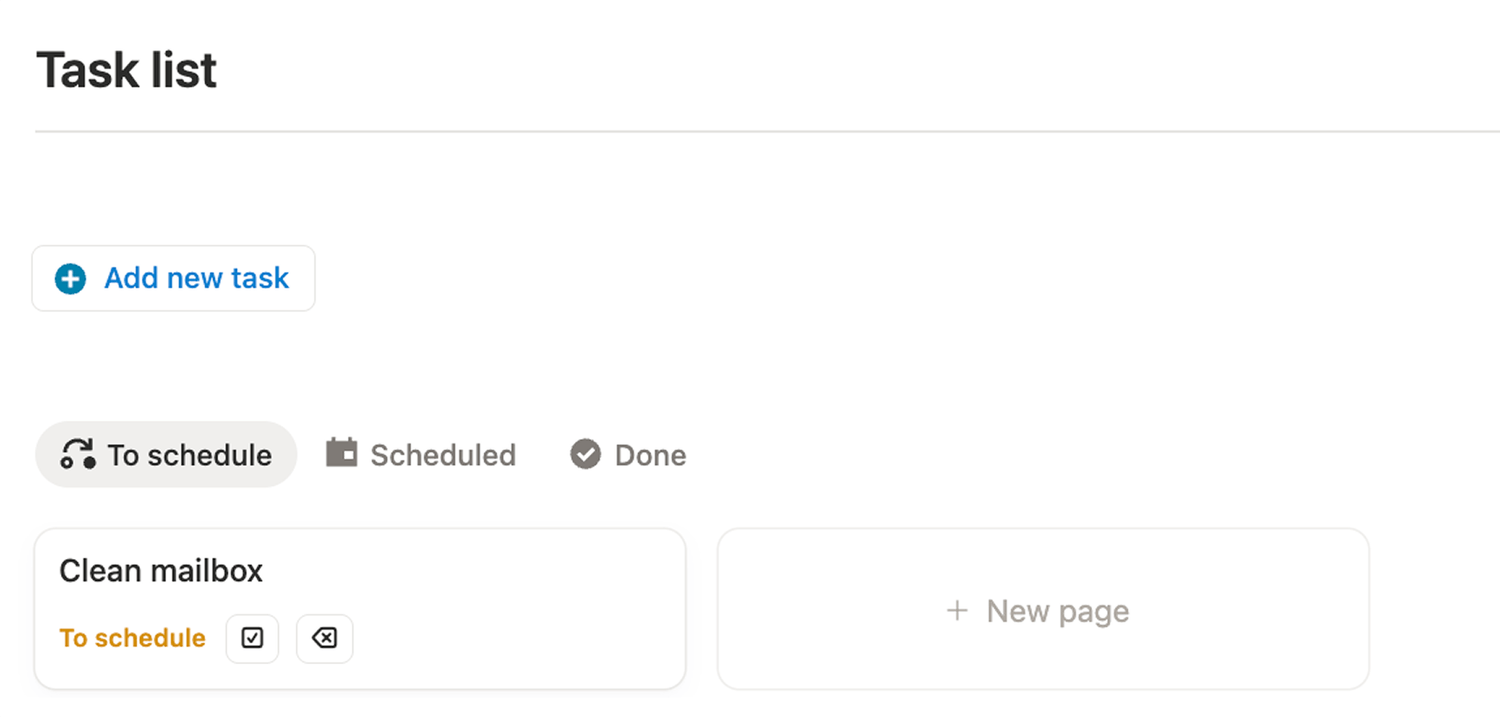
Adding a task to your Easy weekly planner is the easiest thing to do:
1️⃣ Click the Add new task button above the task list.
2️⃣ Give the task a name.
3️⃣ Go back to your dashboard by clicking on the link inside the task page.
After that, your task will show up in the To schedule tab, waiting to be planned.
4. Schedule tasks with drag-and-drop
From the To schedule list, pick a task and simply drag and drop it into your calendar on the date you want.
Prefer starting from the calendar? If you already know when you want to do something, you can also create a task directly from the calendar.
5. Schedule by time of day
A lot of free weekly planners stop at one bucket per day.
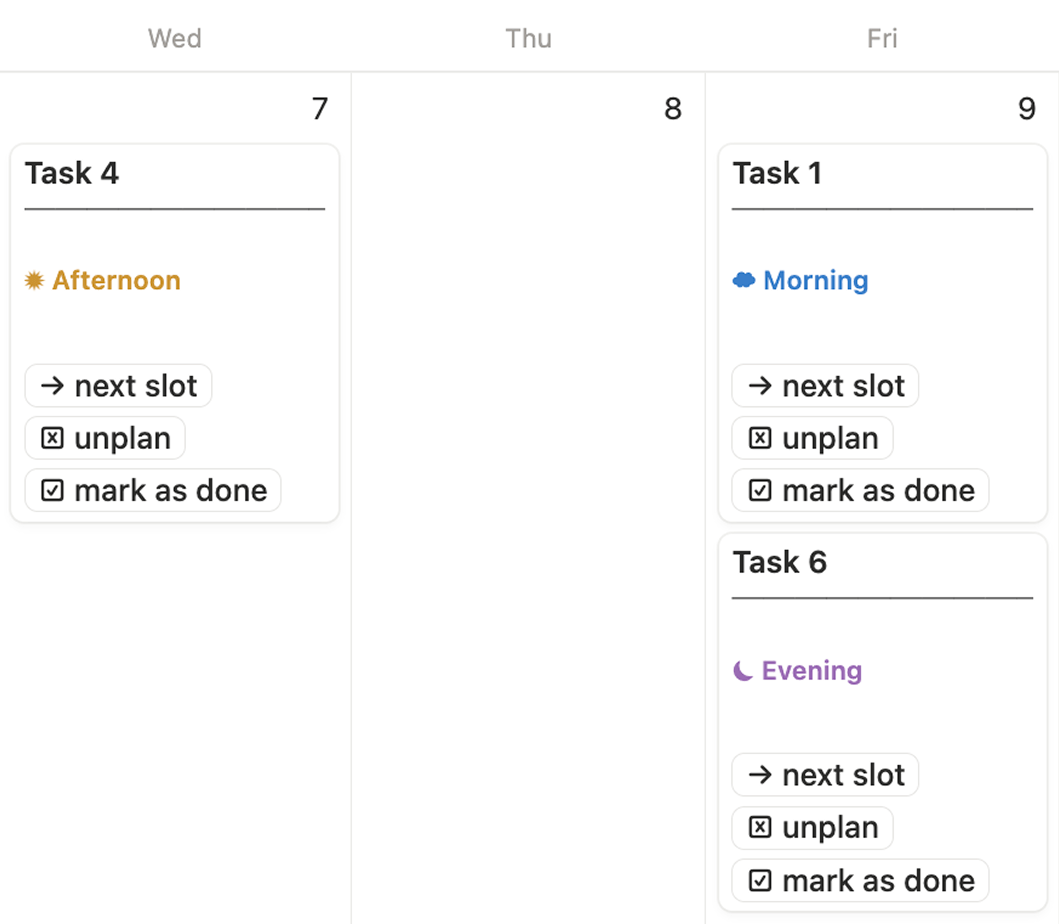
Easy weekly planner goes further by letting you schedule tasks by time of day. That means you can place tasks into:
☁️ Morning
☀️ Afternoon
🌙 Evening
To change the time slot, click the Next slot button on your task.
⚡️ If you have multiple tasks scheduled for the same day, they’ll automatically arrange in chronological order (morning, then afternoon, then evening), so your plan stays readable.
6. What happens when a task becomes overdue?
Here’s an exclusive feature that saves a lot of mental load.
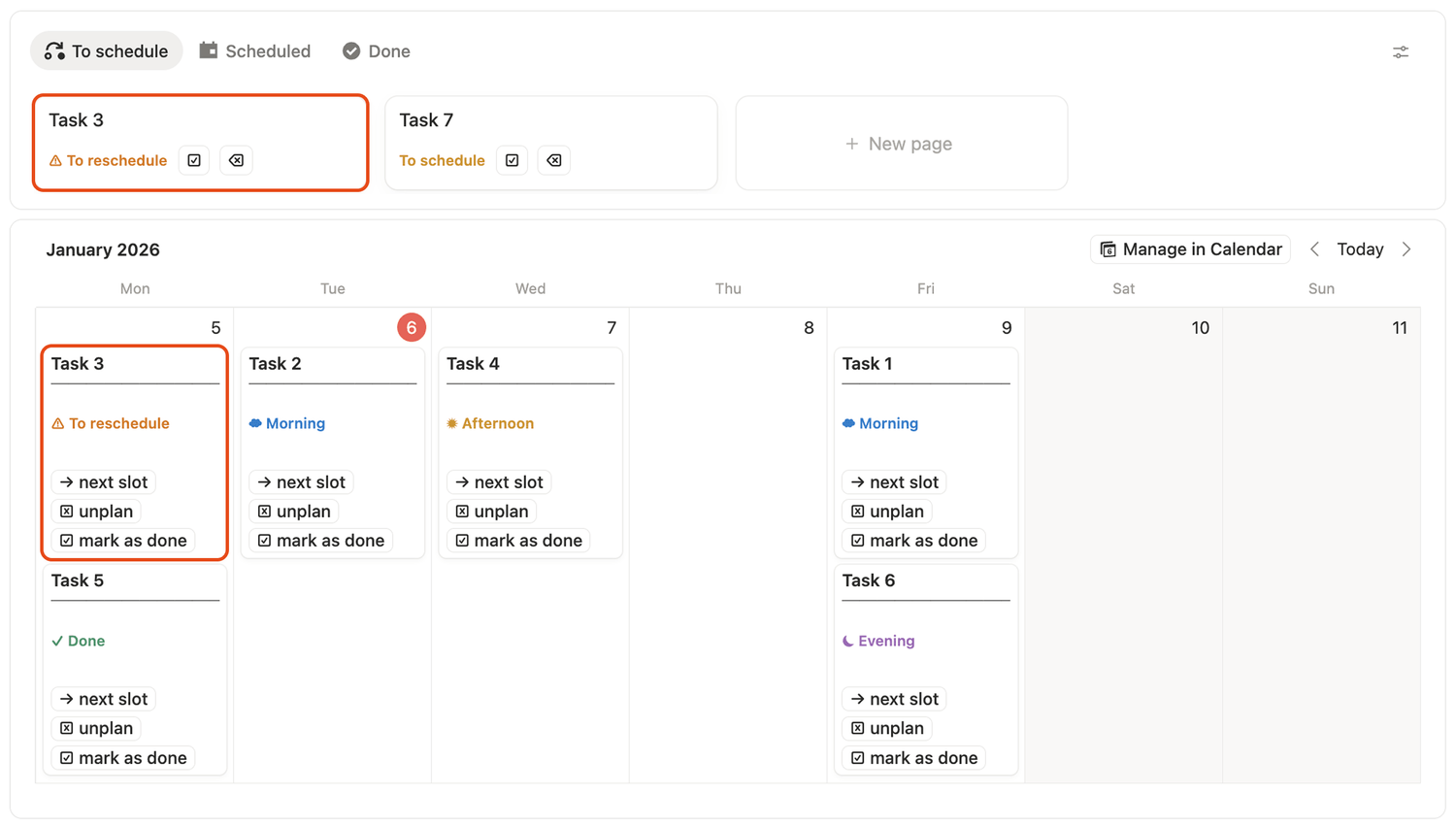
If you scheduled a task for a day that’s already in the past and you didn’t complete it, the planner will automatically:
👉 Switch the task status to To reschedule
👉 And move it back into your To schedule list
So instead of quietly living in yesterday forever, overdue tasks come back to you at the right moment, ready to be planned again.
7. Extra actions you can do with the Easy weekly planner
Beyond planning, the template helps you keep things clean:
🗑️ Delete unfinished tasks using the delete button in your task list
✅ Mark tasks complete with Mark as done (the status updates automatically)
❌ Unplan any planned task by clicking Unplan from the calendar
Final thoughts
If you want a weekly planning system that is simple, visual, and actually helps you follow through without spending hours setting it up, Easy weekly planner is a great place to start.
💙 It’s free, it’s automated, and it’s already helped 10,000+ people plan their weeks more easily.
Click here to download for free.
Latest blog posts
notion by moona
High-quality Notion workspaces for entrepreneurs with high standards.