How to add custom emojis into your Notion workspace?
Emojis and icons are great ways to make your Notion pages more visual.
Beyond the standard emoji library, Notion also includes its own built-in icon set you can add to your pages to make them prettier — and much easier to scan.
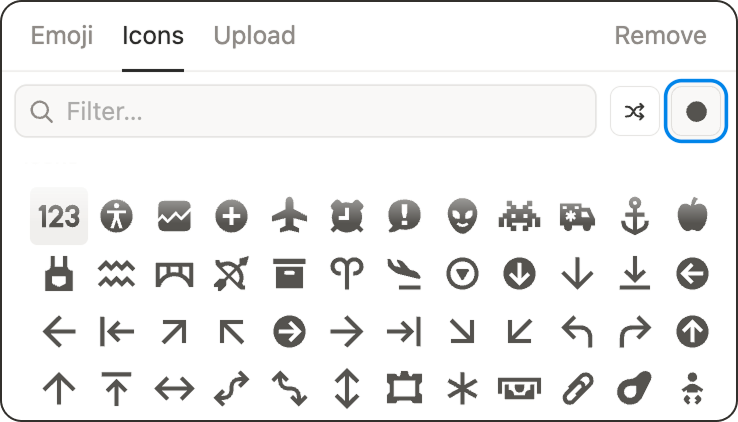
But Notion goes even further: you can upload your own custom emojis to your workspace library. You’ll be able to use them not only as page icons, but also directly inside your text, just like regular emojis.
In this guide, I’ll show you exactly how to add custom emojis to your Notion workspace, where to find them later, and how to use them in a way that genuinely improves your workflow.
Why you’ll actually want to use custom emojis (beyond aesthetics)
Custom emojis aren’t just cute: they’re functional. And one of the best use cases is your content calendar.
If you plan content in Notion, you know the pain: everything looks the same until you open each page. Sure, you can color-code your content… but what happens when YouTube and Pinterest end up sharing the same color?

With custom emojis, you can add platform logos right next to your content titles, so you instantly see what’s going live where.
It’s a small detail, but it makes planning feel lighter, faster, and way more visual.
How to upload a custom emoji in Notion
1️⃣ Open the page where you want to add your custom emoji
2️⃣ Click Add icon above the page title (or click the existing icon if there’s already one)
3️⃣ In the emoji panel, go to the Upload tab
4️⃣ Upload your image in one of two ways:
👉 Upload a file from your computer
👉 Or copy an image from the internet and paste it directly in using shortcut Cmd + V on Mac or Ctrl + V on Windows
5️⃣ Select Add to workspace emoji library if you want to reuse your new emoji later
6️⃣ Give it a name
7️⃣ Click Save
That’s it! 🥳 You’ve just added a custom emoji to your workspace.
Important note
If you don’t select Add to workspace emoji library, the image will still be used as the page icon… but it won’t be saved as a reusable emoji.
So if your goal is to build a consistent, reusable icon system, make sure you save it to the library.
Where to find and reuse your custom emojis later
Once saved, your custom emojis live inside your workspace emoji library under the Custom tab (at the bottom of the emoji panel).
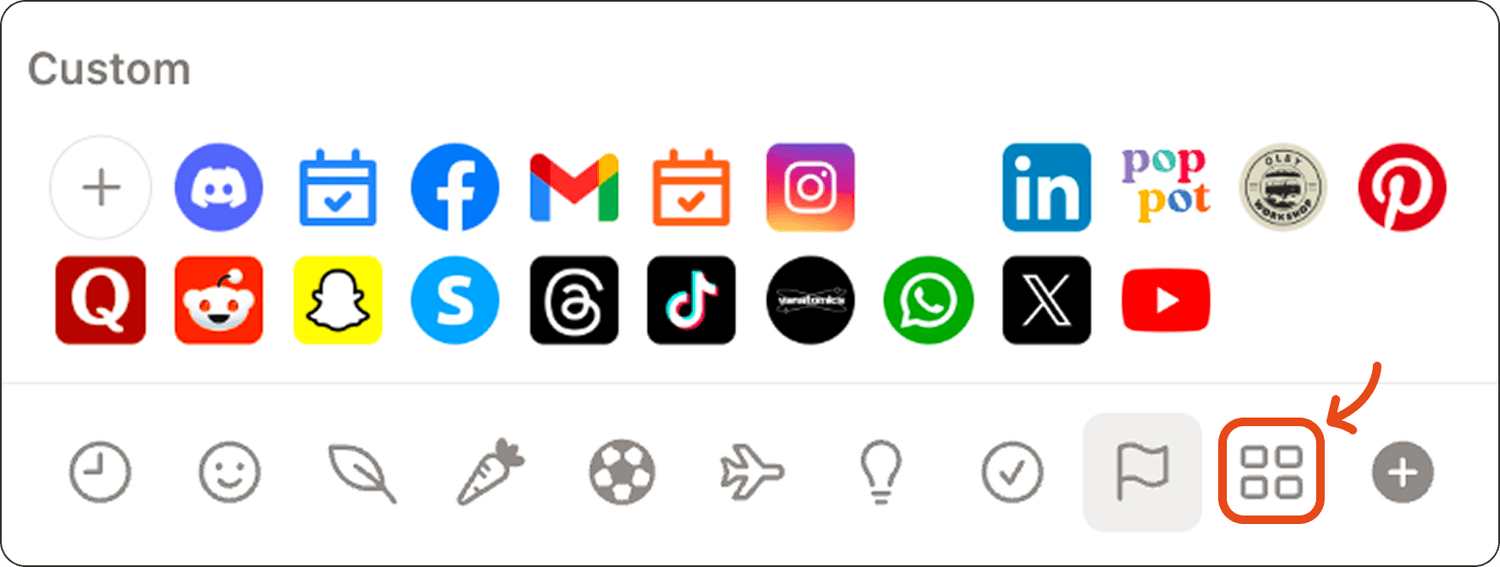
You’ll be able to reuse them as page icons, but also insert them anywhere in your workspace like any other emoji:

To add one inside your text:
1️⃣ Open the emoji picker by typing /emoji
2️⃣ Go to the Custom tab
3️⃣ Click your emoji
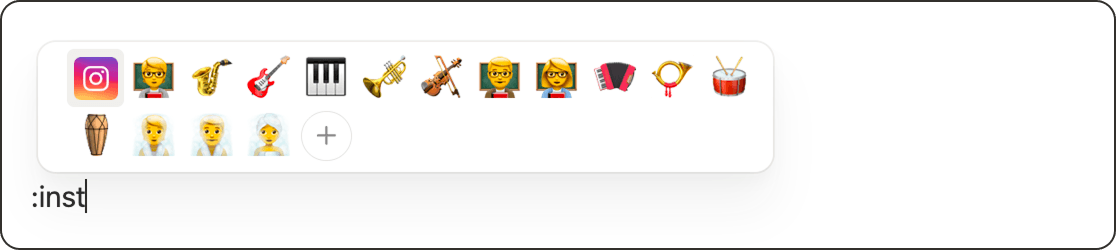
And if you remember the name you gave it, you can also type colon (:) then start typing the emoji name to select it from the suggestions.
How to add custom emojis directly from the emoji library
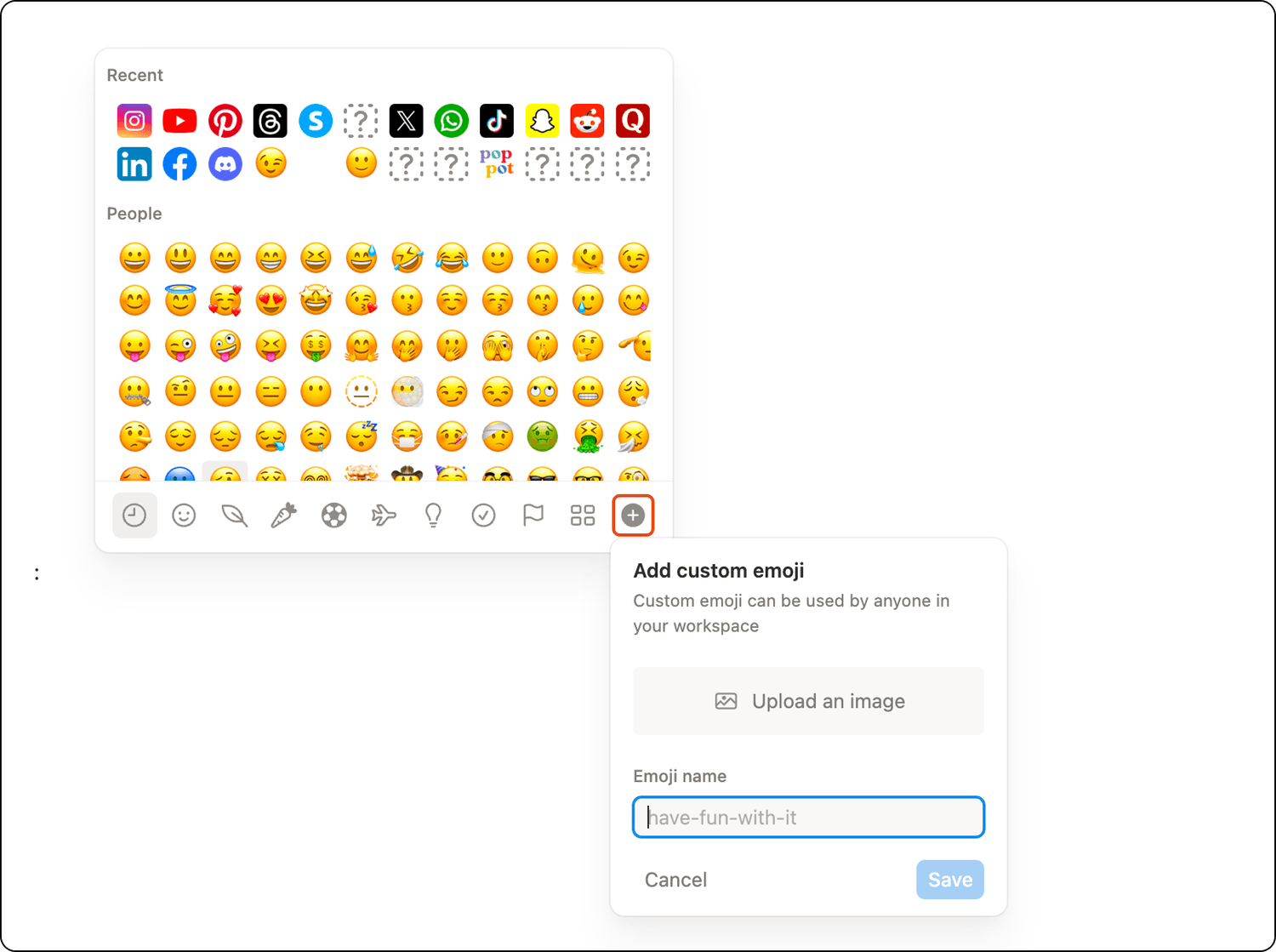
You can also upload emojis straight from the emoji picker inside your page content:
1️⃣ Type /emoji to open the emoji picker
2️⃣ Click the + button in the bottom-right
3️⃣ Upload an image from your computer, name it, and save it
One thing to note: the copy/paste trick from the internet doesn’t work here. You’ll need to upload a file manually.
Final thoughts
Custom emojis are one of those tiny Notion upgrades that instantly makes your workspace feel more “yours” and more efficient.
You can add social media logos, but also your brand and client logos, or any icons you love using. Have fun with it!
Latest blog posts
notion by moona
High-quality Notion workspaces for entrepreneurs with high standards.