How to build a content calendar in Notion
In this article, I’ll show you how to build a simple content calendar in Notion from scratch.
We’ll create the database, add the essential properties, build several useful views, and organize each content page so it stays clear and easy to use. By the end, you’ll have one place to plan your content, track its progress, and see what needs to be published next.
This setup is intentionally simple, so it’s perfect if you’re new to Notion.
📹 Prefer to follow along visually?
You’ll find a step-by-step video tutorial at the end of this article.
📌 Want to get started right away?
Download the free, ready-to-use Content calendar template.
1. Create the database
Open your side panel and click the + button next to your Private tab to add a new page.
At the bottom of the page, click Database and select Empty database. Rename it Content calendar.
The first column, called Name, is where you’ll enter the title or idea for each piece of content.

2. Add the properties
Now, we’re going to create seven additional properties.
2.1. Publication date
First, add a Date property. Click the property name and rename it Publication date. This tells you when each piece of content should go live and will power the calendar view later.

2.2. Status
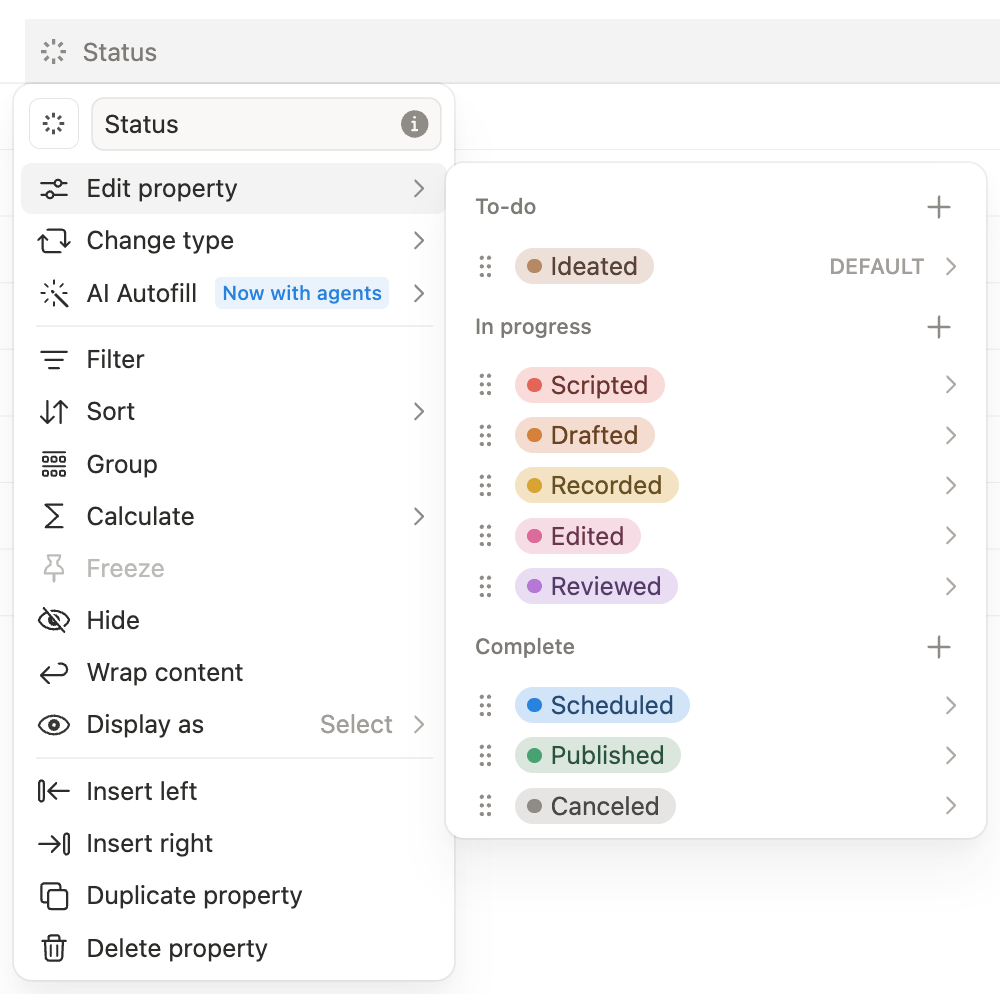
Second, add a Status property. Click the property name, go to Edit property and add the following nine options:
👉 In the To-do group, rename Not started to Ideated.
👉 In the In progress group, delete In progress and add Scripted, Recorded, Drafted, Edited, and Reviewed.
👉 In the Complete group, delete Done and add Scheduled, Published, and Canceled.
Once all nine options have been added, change their colors and arrange them in chronological order to reflect your content creation workflow.
2.3. Platform
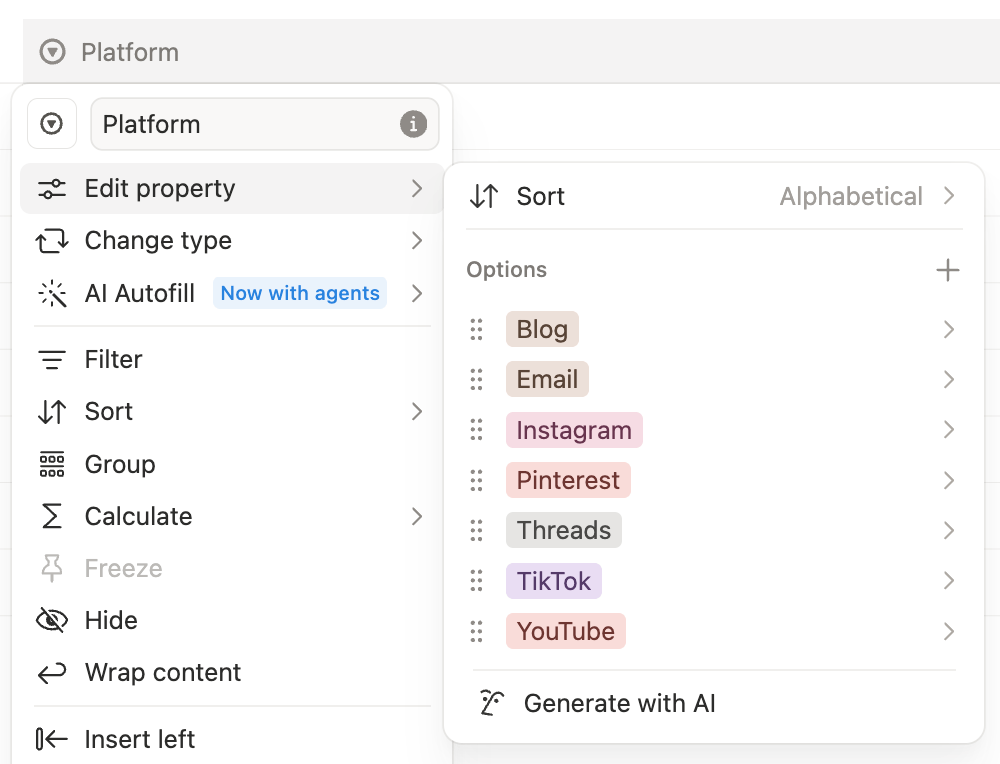
Now add a Select property. Click the property title and rename it Platform.
Then, select Edit property, and create one option for each platform you use. For example: YouTube, Instagram, TikTok, LinkedIn, blog, email, or Pinterest. You don’t need to add every possible platform, only the ones that are relevant to you.
Once you’ve added all the options, change their colors to match each platform’s brand colors, then select Sort alphabetically.
2.4. Format
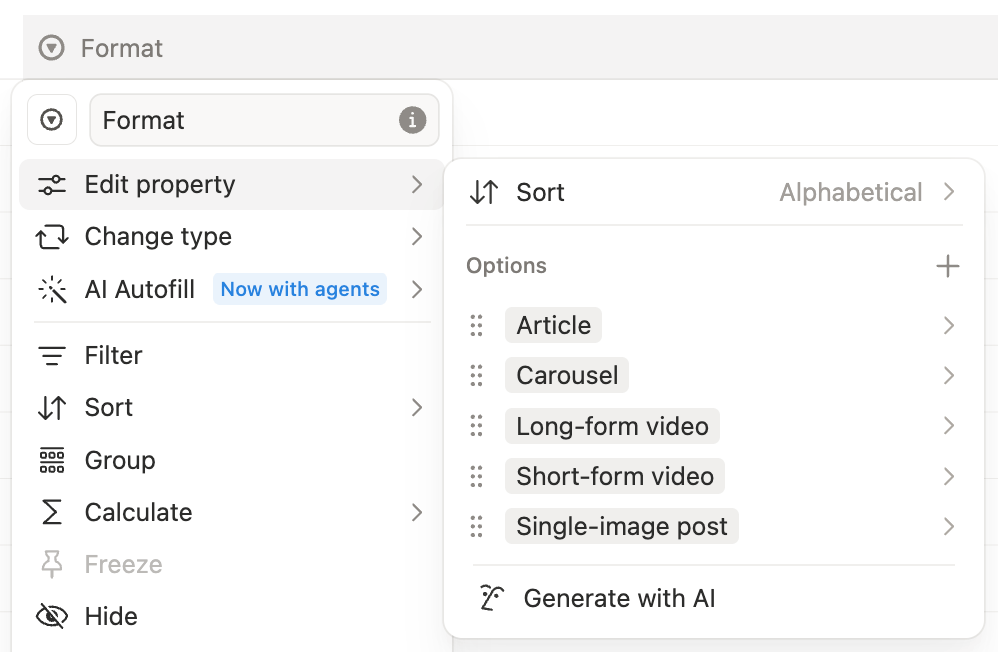
Add another Select property and call it Format.
Click the property title, select Edit property, and create one option for each content format you use: article, carousel, newsletter, podcast, short-form video, long-form video, single image post, story, text-only post, etc.
Change the colors to your liking, then select Sort alphabetically.
2.5. Purpose
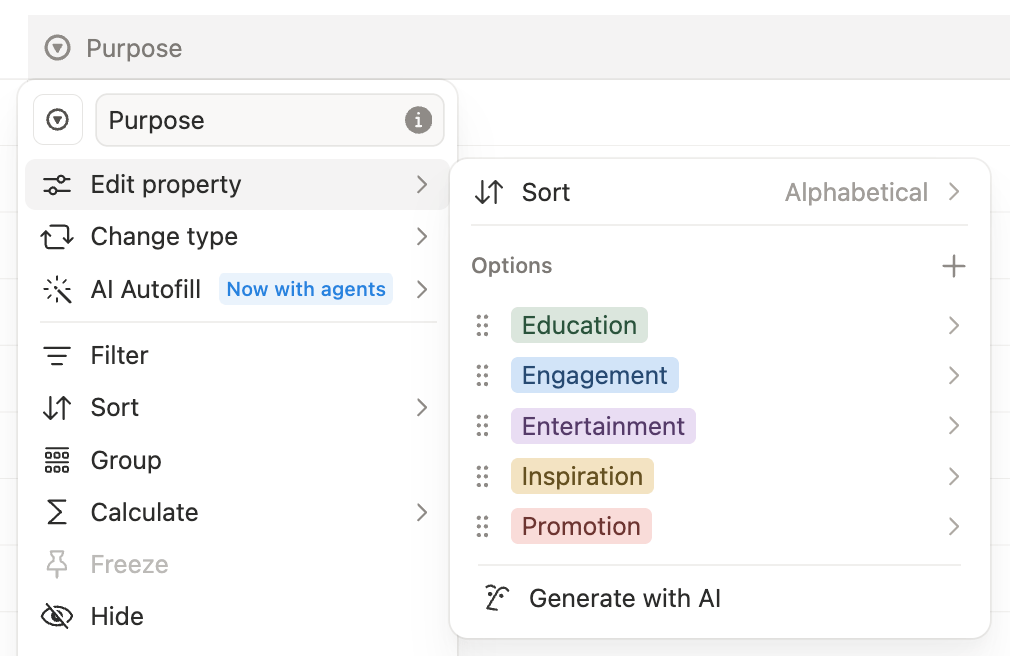
Add a third Select property and call it Purpose.
Click the property title, select Edit property, and add the following options: education, engagement, entertainment, inspiration and promotion.
These represent five broad objectives commonly used in a communication strategy.
Change the colors to your liking, then select Sort alphabetically.
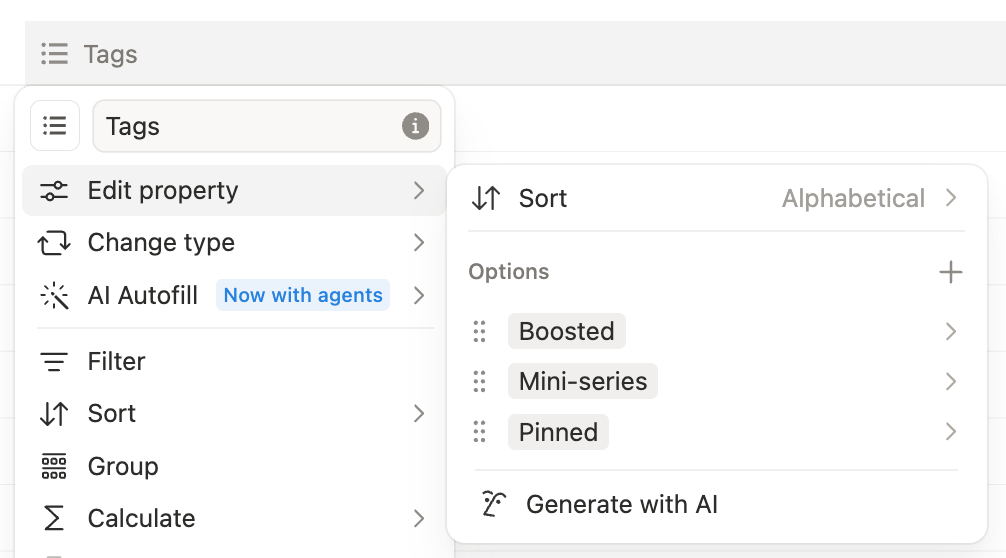
2.6. Tags
Finally, add a Multi-select property called Tags. Click the property title, select Edit property, and add options that help you filter or identify special content.
2.7. Automatic ID
You can also add an automatic ID property. This is useful if you want every content item to have a unique reference number, but it’s not mandatory.

Your content calendar database is ready. ✅
3. Create the views
We’re now going to create five other views to help you manage your content more effectively based on what you need to focus on.
3.1. Calendar
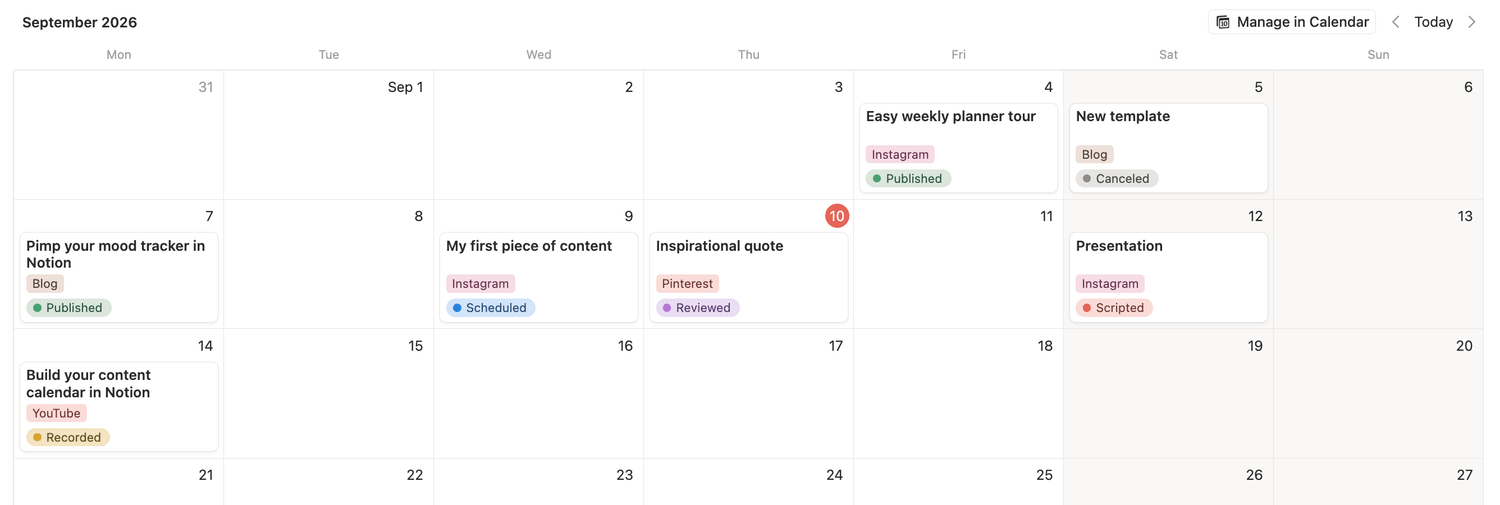
Click the + button next to your table view title to add another one. Choose the calendar layout. Name your view Calendar, turn off Show page icon, turn on Wrap page titles and click Done.
Go to Property visibility and show the Name, Platform, and Status properties. This gives you the essential information without making the calendar feel crowded.
The calendar is useful for checking your publishing rhythm, spotting empty days, and moving content to a different date by dragging the card.
3.2. Kanban
Add another view, choose Board, and name it Kanban. The board will automatically be grouped by Status. Turn off Show page icon, select the Compact card layout and click Done.
Go to Property visibility and show Title, Publication date, Platform, and Format. Then, click Style properties and turn on Publication date.
Your content now moves from Ideated through the production stages and finally to Published. This is the best view for understanding the current stage of every content item.

Now we’ll create three simple list views so you can focus on the right content at the right time.
3.3. To-do list
Create a new list view and call it To-do list. Turn off Show page icon and click Done.
Go to Property visibility and show all of them. Move the Publication date to first position and Status to second. Then, move the Name property to third position.
Click Filter and choose Status. Select the To-do group.
Go back to your settings and click Sort. Select Publication date and choose if you want to display your items from old to new or the other way around.

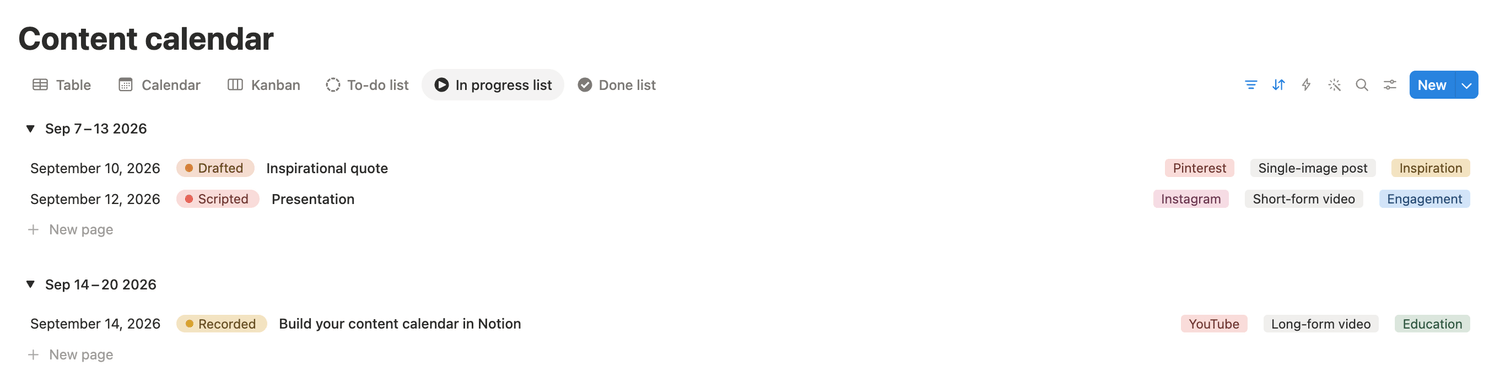
3.4. In progress list
Right click on your To-do list view and duplicate it. Change the name to In progress list.
Change the filter so Status is In progress. You can group this view by Publication date, by week, with oldest first.
Go back to your settings and click Sort. Make sure the old to new option is selected.
3.5. Done list
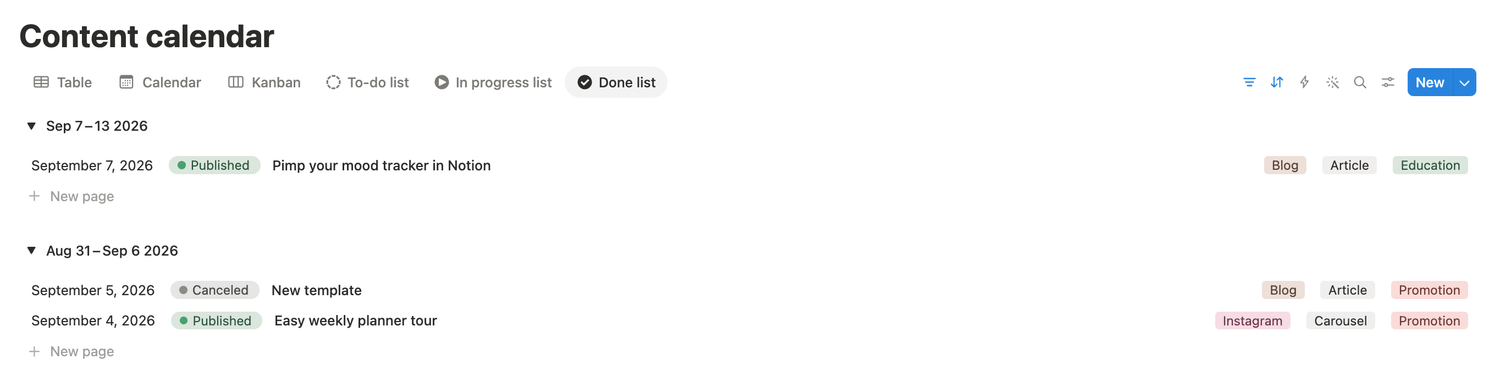
Duplicate this view and rename it Done list.
Filter it to the Complete status group. Click Sort and select new to old. Then click Group and sort by newest first.
Now that your views are ready, all that’s left to do is optimize how your content pages are displayed.
4. Optimize the content pages
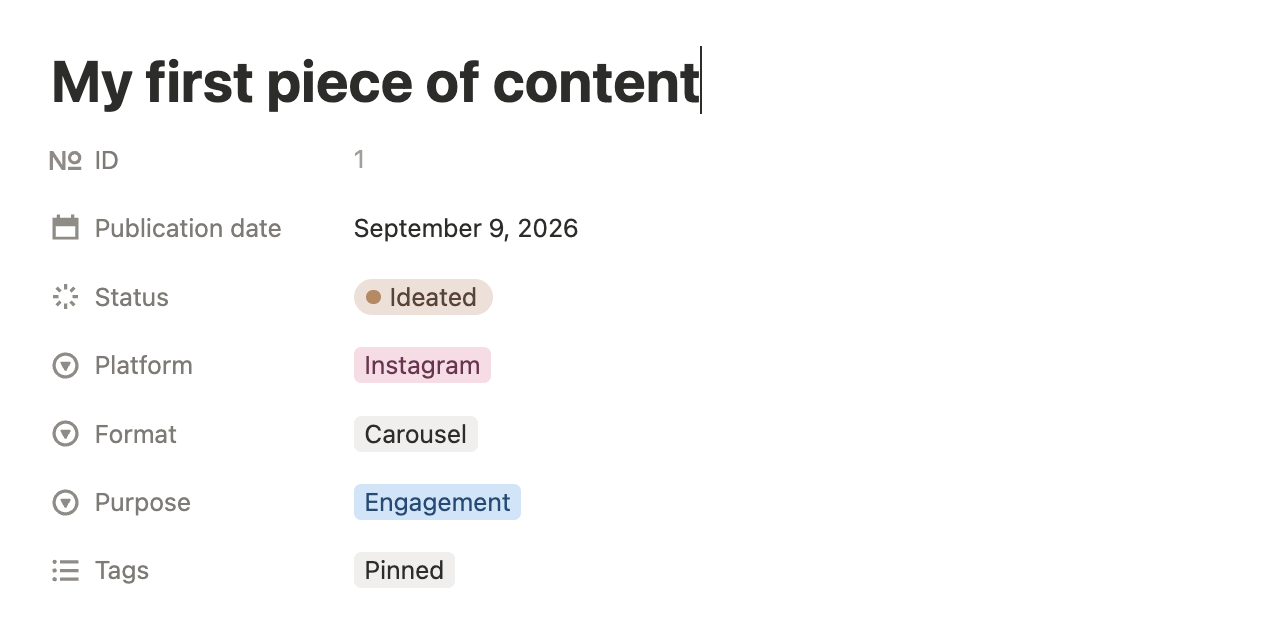
Add a new page from anywhere, that you’ll delete later. Inside this page, organize the properties so the most useful ones appear first.
The body of the page can hold everything related to the content itself: the idea, outline, script, links, notes, assets, and final URL.
And that’s it! 🥳
You now have a complete but beginner-friendly content calendar in Notion, with a table for editing, a calendar for scheduling, a Kanban board for production, and focused lists for what’s next, what’s in progress, and what’s done.
Latest blog posts
notion by moona
High-quality Notion workspaces for entrepreneurs with high standards.