How to build a resource library in Notion
If you save articles, videos, books, podcasts, tools, tutorials, or inspiration throughout the week, you probably know how quickly everything can become scattered. A link saved in your browser, a video added to Watch later, a PDF downloaded somewhere, a post bookmarked on social media… And when you actually need that resource again, it can be hard to find.
That is exactly why building a resource library in Notion can be so useful.
Instead of keeping everything in different apps or folders, you can bring all your resources into one database and categorize them so they are easier to find later.
In this tutorial, I’ll walk you through a simple way to create your own resource library in Notion, with the essential properties and views you need to keep it clean, flexible, and easy to browse. And if you’re more comfortable with a video explanation, you’ll find one at the end of the article!
1. Create the database
Start by creating a new database in Notion. This database will become the home of your resource library. Each entry in the database will represent one resource.
Once the database is created, rename the default Name property to Title. This is where the title of each resource will appear. For example, if you save a blog post, a book, or a video, its name will go in this property.

2. Create the properties
Now, you’ll need to create six new properties in this database. They will help you:
1️⃣ Save the name of the author or creator
2️⃣ Identify the format of each resource
3️⃣ Organize your resources by topic
4️⃣ Track the status of each item
5️⃣ Rate how useful or relevant the resource is
6️⃣ Store the link or file connected to the resource
2.1. The author
Add a new Text property and name it Author.
This property is where you can add the name of the person, brand, website, or organization that created the resource.
This makes it easier to remember where a resource came from and to find more content from the same source later.

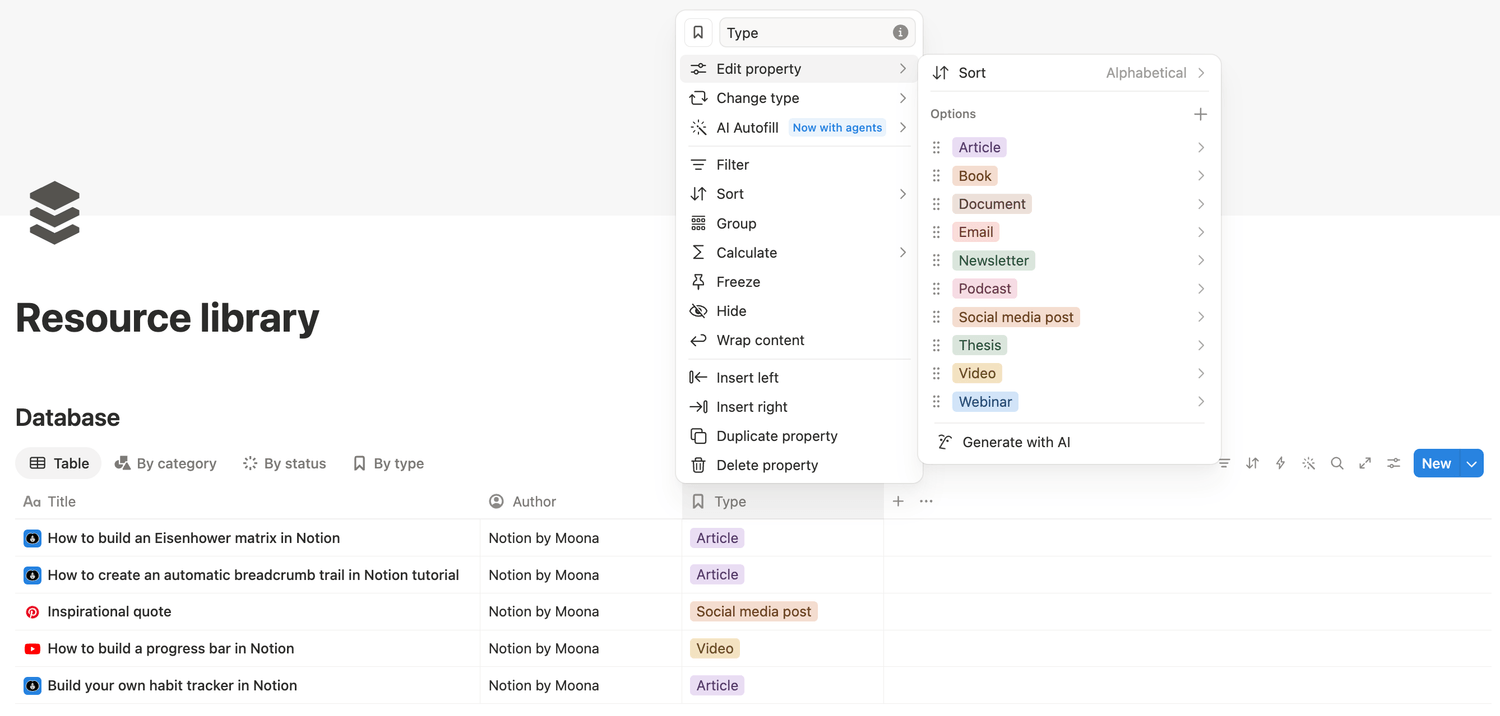
2.2. The type
Then, add a Select property and name it Type.
This property will help you define what kind of resource each item is. You can create options such as:
👉 Article
👉 Book
👉 Podcast
👉 Video
👉 Course
👉 Tool
👉 Template
👉 Website
To add these options, open the property settings, click Edit property, and create as many options as you need.
You can also sort the options alphabetically to make them easier to browse, and customize their colors if you want your database to be more visual.
2.3. The categories
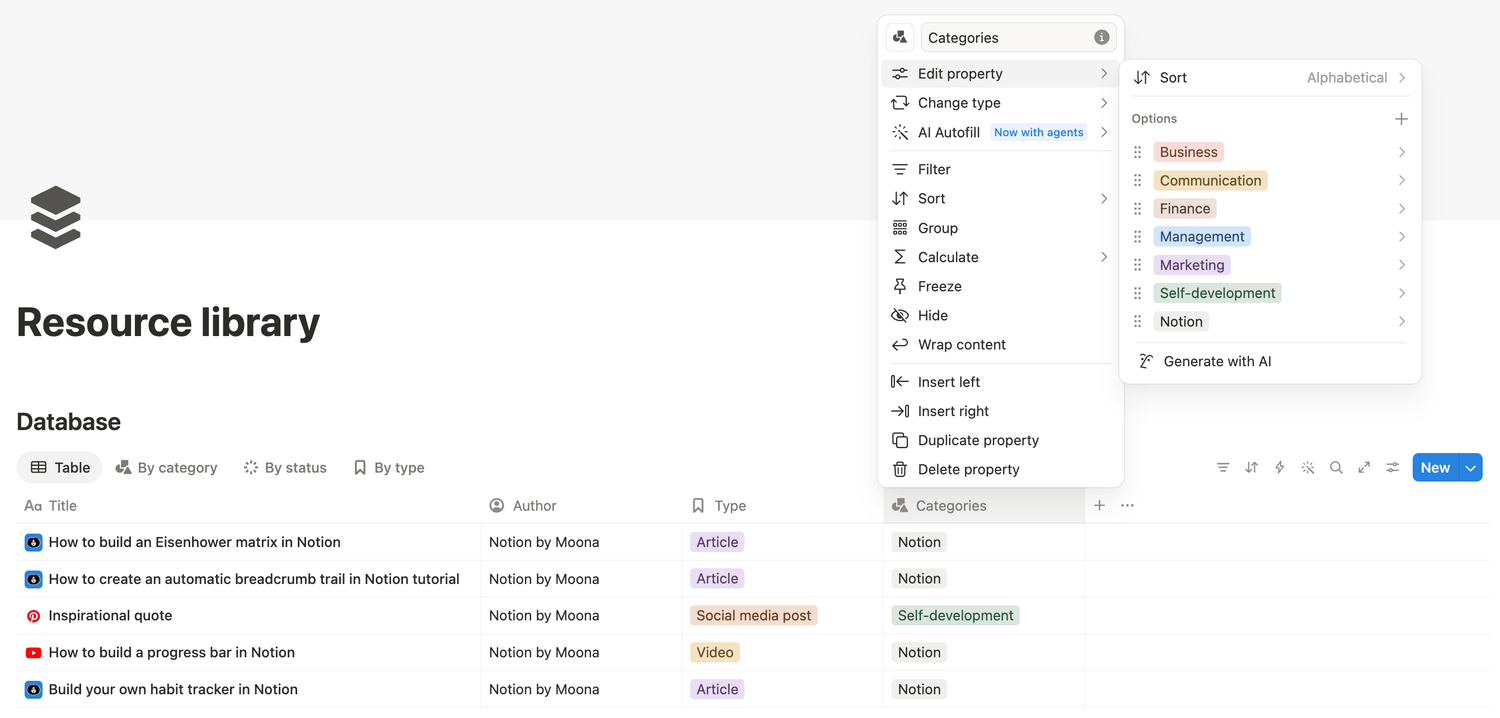
Now, add a Multi-select property and name it Categories.
This property allows you to assign one or several categories to the same resource. For example, this article could belong to both:
🗂️ Productivity
🗂️ Notion
🗂️ Knowledge
This is why a multi-select property is useful: your resources do not have to fit into only one box. You can create any categories that match the way you think and work.
Just like with the Type property, you can sort your options alphabetically and change their colors to make your library easier to scan.
2.4. The status
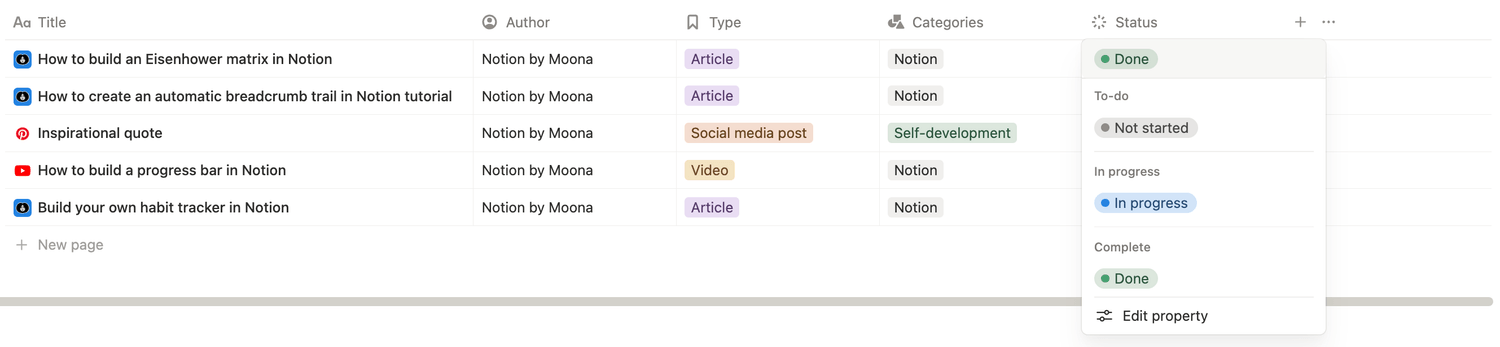
Next, add a Status property. This will help you track where you are with each resource.
You do not need to overcomplicate this property. The goal is simply to know whether you still need to read, watch, listen to, or review something.
This is especially helpful if your resource library also works as a learning or research system.
2.5. The rating
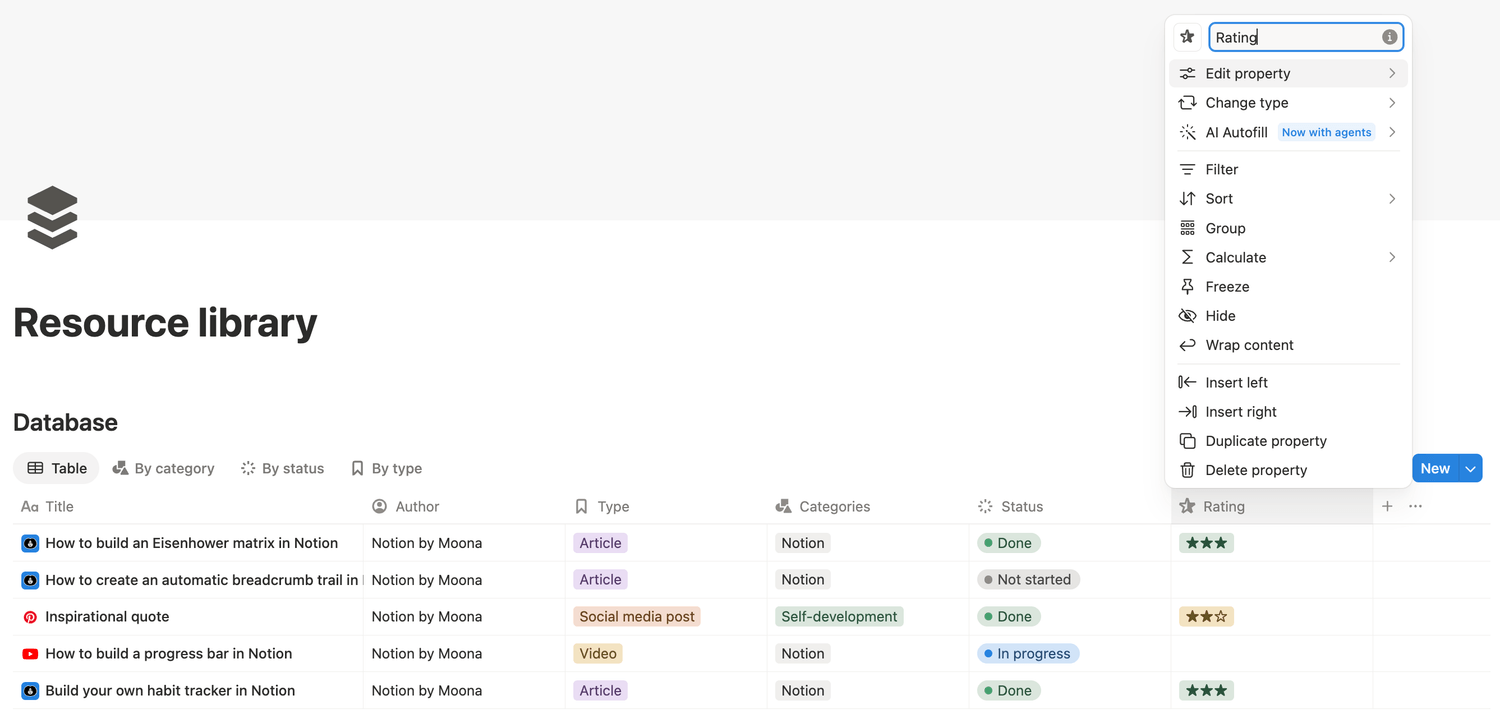
Then, add another Select property and name it Rating.
This property helps you evaluate how useful or relevant each resource is.
You can keep it very simple with three levels, such as:
🟢 High value
🟡 Useful
🔴 Not essential
Or you can use a more visual rating system, for example:
⭐️
⭐️⭐️
⭐️⭐️⭐️
The point is not to rate everything perfectly. The goal is to help your future self quickly identify which resources are worth revisiting.
2.6. The resource link
Finally, add a Files & Media property.
This is where you can store the link or file connected to your resource. It can be:
👉 A URL
👉 An image
👉 A PDF
👉 A file
👉 A screenshot
👉 Any other media you want to keep
This property makes your resource library more practical because you can access the resource directly from the database.

At this point, the main structure of your resource library is ready. ✅
3. Create useful database views
Once your database is set up, you can create different views to make it easier to navigate.
Views allow you to look at the same database in different ways, depending on what you need.
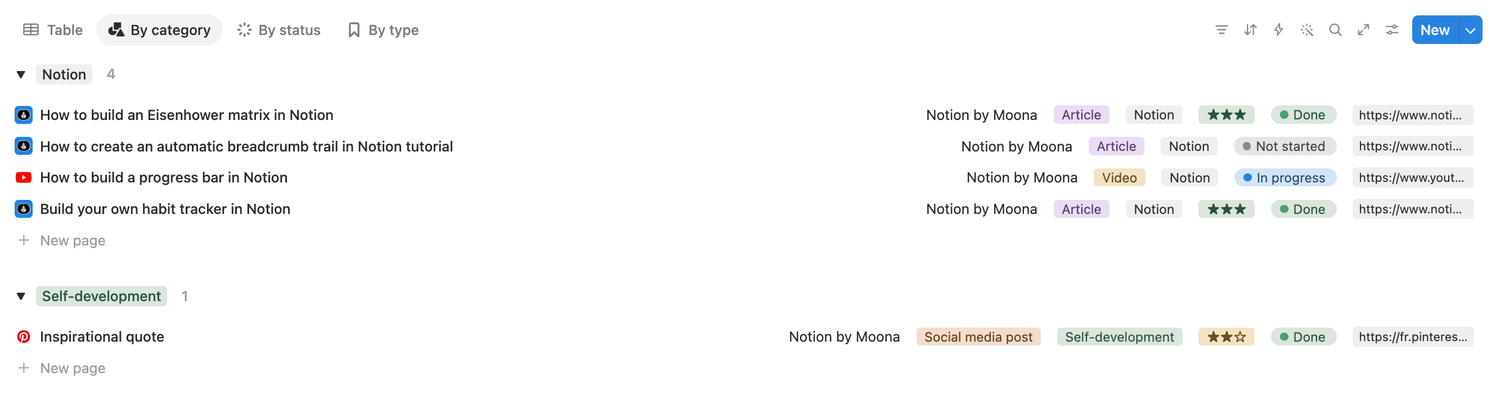
A very useful first view is a view grouped by category. To create it:
1️⃣ Click the + next to your database title
2️⃣ Choose the List layout
3️⃣ Rename the view By category
4️⃣ Open Property visibility and choose which properties you want to display (all of them)
5️⃣ Click Group and select Categories
6️⃣ Sort the groups alphabetically
Now your resources will be displayed by category, making it much easier to browse your library by topic.
You can also show the number of resources in each category by clicking the three dots next to a group name and selecting Show aggregation.
Feel free to create a view grouped by status or by type too.
Why this system works
This resource library is simple, but it gives you enough structure to stay organized without making the system too heavy. With only a few properties, you can:
✅ Save all your resources in one place
✅ Know who created each resource
✅ Identify the format of each item
✅ Organize resources by topic
✅ Track your progress
✅ Rate what is worth revisiting
✅ Access links and files directly
And because it is built in Notion, you can always adapt it later. You can add more properties, create more views, connect it to other databases, or use it as part of a larger content, learning, or research system.
Latest blog posts
notion by moona
High-quality Notion workspaces for entrepreneurs with high standards.