How to build a simple 1-click mood tracker in Notion
Tracking your emotions and energy levels daily is one of the most effective ways to understand your mental well-being, spot burnout triggers, and celebrate positive trends.
However, most mood-tracking systems fail for one simple reason: friction. When logging your mood requires filling out long forms or opening nested menus, it quickly becomes a chore you abandon after three days.
In this tutorial, you’ll learn how to build an automated, 1-click mood tracker in Notion. With quick-action emoji buttons for effortless logging and a color-coded calendar view to visualize your emotional trends over time, you can log your day in under 5 seconds.
📹 And if you prefer watching the process step by step, the video version of this tutorial is available at the end of the article.
1. Create the database
1️⃣ Open the page in Notion where you’d like to keep your tracker (or create a new blank page).
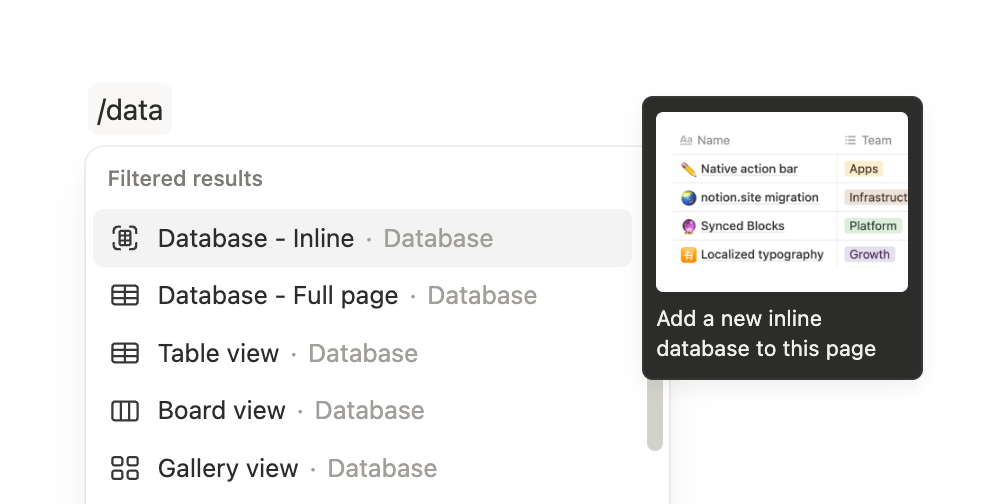
2️⃣ Type /database in an empty block and select Database - Inline. Then, choose New empty data source.
3️⃣ Give your database a title, such as Daily mood tracker.
2. Configure the core properties
2.1. Add the mood property
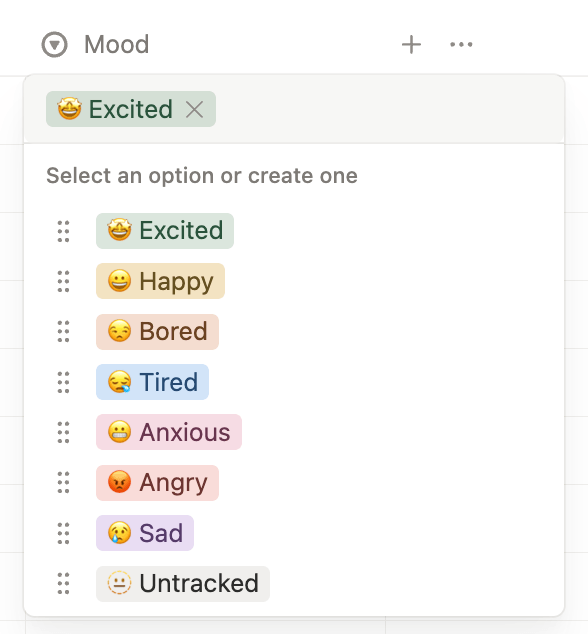
1️⃣ Click the + icon at the right of the Name column to add a new property.
2️⃣ Choose Select as the property type and name it Mood.
3️⃣ Add the following 8 options (feel free to copy and paste them directly):
🤩 Excited
😀 Happy
😒 Bored
😪 Tired
😬 Anxious
😡 Angry
😢 Sad
🫥 Untracked
4️⃣ Reorder the options manually from most positive (top) to most negative (bottom), keeping Untracked at the very end.
5️⃣ Adjust the color tag for each mood so it visually represents the feeling.
2.2. Add the date property
Click + to add another property and choose Date. No additional configuration is needed here.
3. Create 1-click action buttons for instant logging
Instead of opening a dropdown menu every day, we’ll create button properties that update the mood with a single click.
1️⃣ Click + to add a new property and select Button.
2️⃣ Rename the property to Excited.
3️⃣ Click Edit automation in the property settings.
4️⃣ Replace the button’s name at the top with the corresponding emoji (🤩). This only changes what appears on the button, not the property name itself.
5️⃣ Click New action and select Edit property.
6️⃣ Select the Mood property and choose the Excited option.
7️⃣ Save your changes.
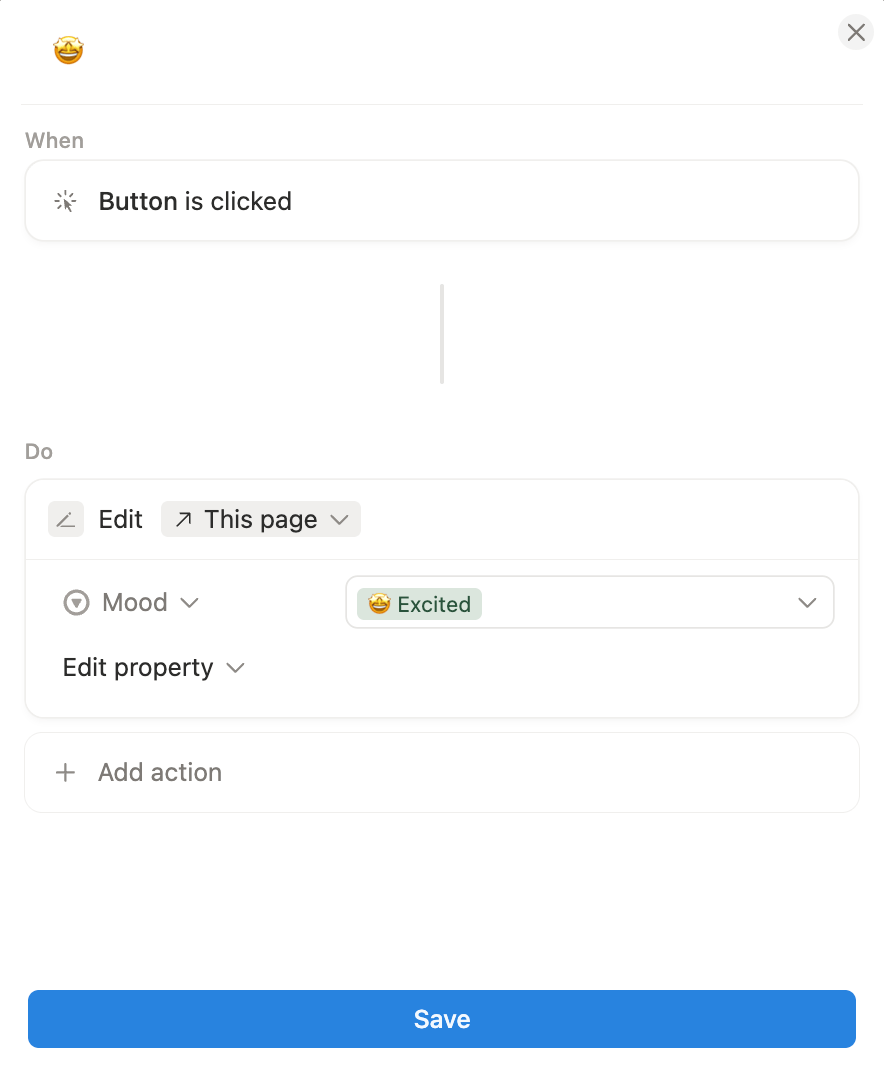
Your first button is ready.
Now, repeat this process for the remaining 6 active moods. You do not need to create a button for the Untracked option, as that will be our automated default state.

4. Automate daily entries with a recurring template
Let’s ensure you never have to manually create a new entry each day.
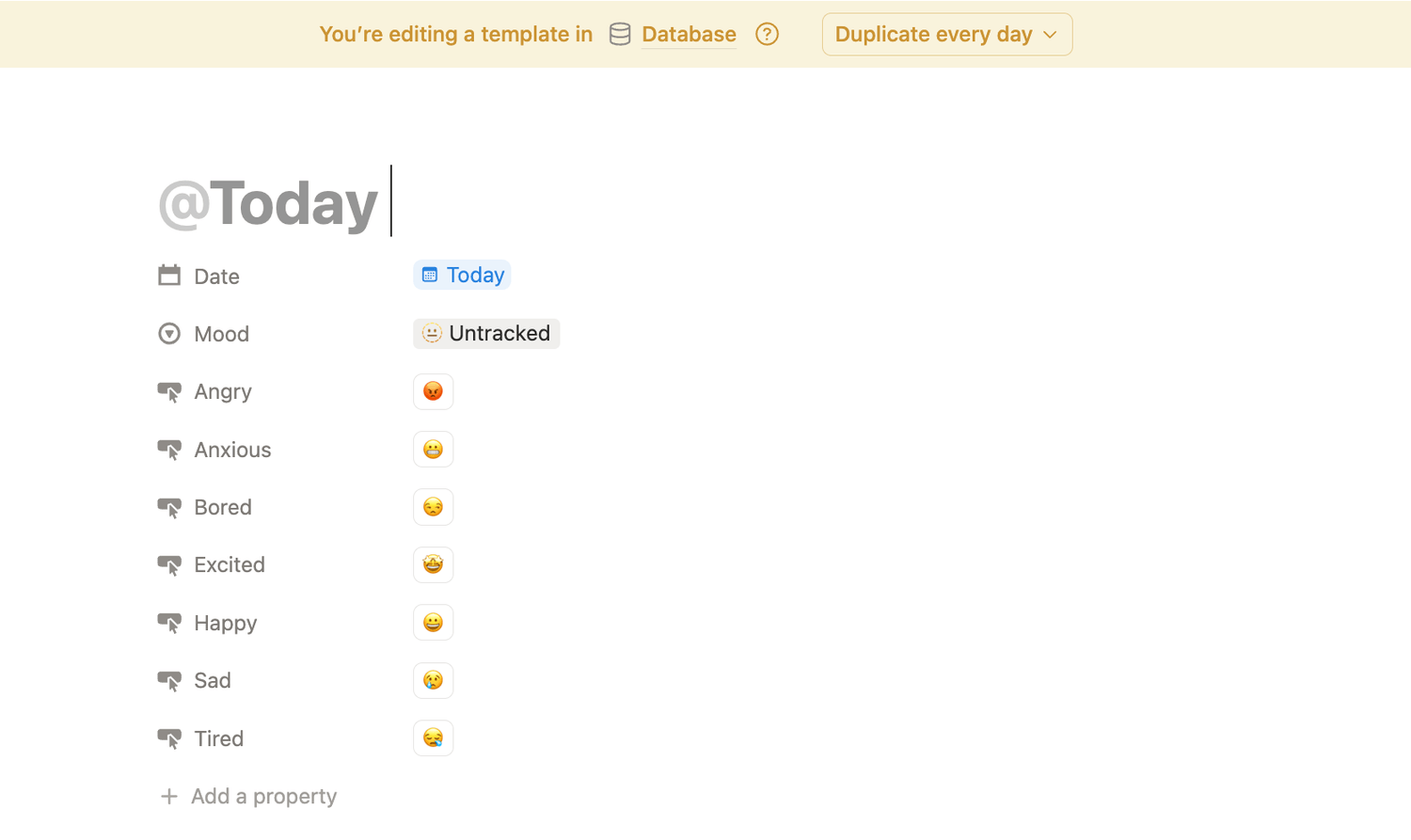
1️⃣ In the top-right corner of your database, click the dropdown arrow next to the blue New button and select New template.
2️⃣ In the title field, type @ and choose Date when duplicated (this dynamically inserts today’s date as the title).
3️⃣ Click on the Date field and select Today - Date when duplicated.
4️⃣ The click on the Mood field and set it to Untracked.
5️⃣ In the top bar of the template editor, look for the Duplicate every button and select Day.
6️⃣ Click anywhere outside the template window to return to your database.
7️⃣ Now click the dropdown arrow next to the blue New button again, click the three dots next to your new @Today template, and select Set as default (choose For all views).
From now on, every morning, Notion will automatically generate a new entry with today’s date, ready for your 1-click check-in.
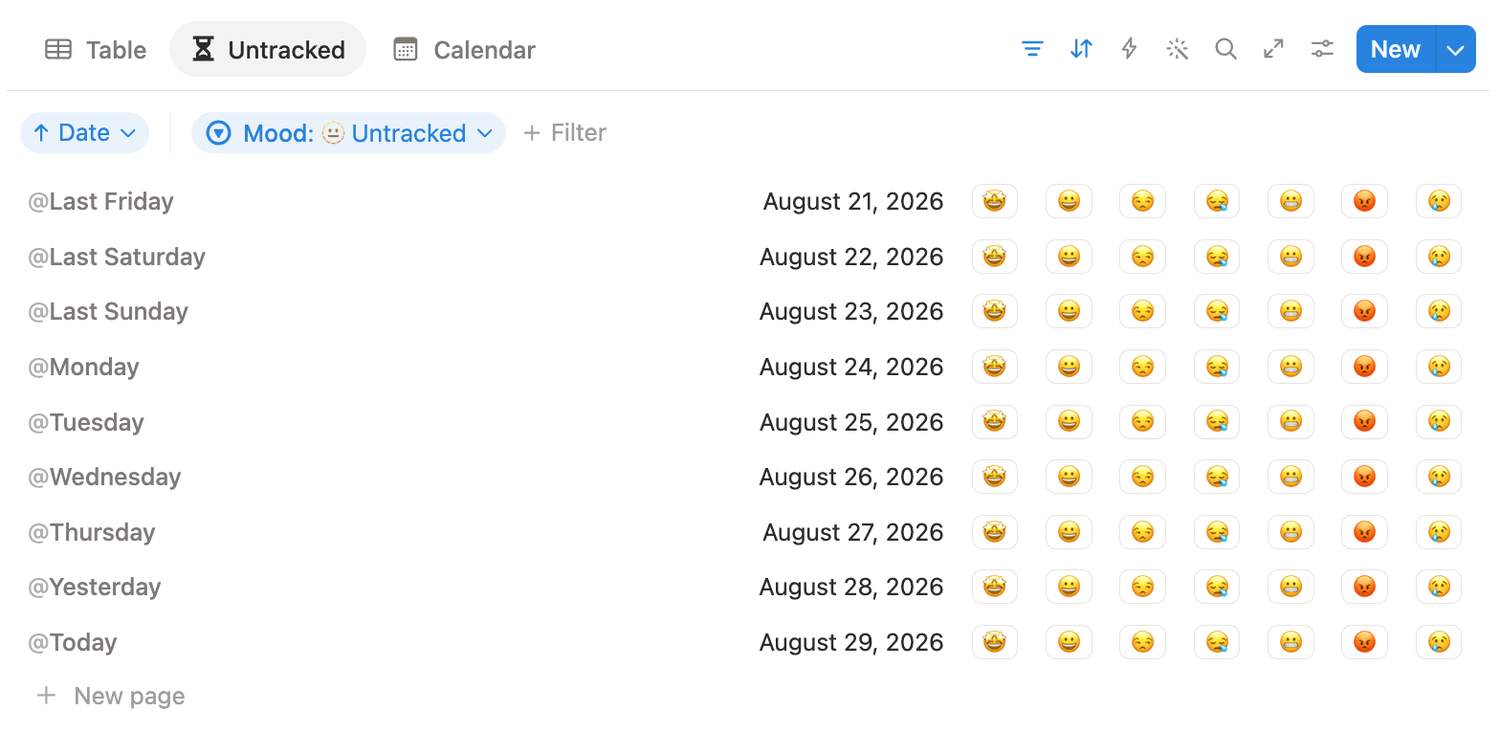
5. Design the daily logging view
Now, let’s build a distraction-free queue where unlogged entries appear and disappear as soon as you track them.
1️⃣ Click the + next to your current view name to add a new view.
2️⃣ Select List layout and name this view Untracked.
3️⃣ In the layout settings, toggle off Show page icon, then click Done.
4️⃣ Open the settings and go to Property visibility.
5️⃣ Make the Date property visible and place it at the very top.
6️⃣ Make all 7 mood buttons visible, ordered from most positive to most negative.
7️⃣ Hide the other properties.
Now you’ll need to sort and filter this view.
👉 Sort: by Date.
👉 Filter: mood is Untracked.
How it works: whenever you log your mood by clicking an emoji button, the entry immediately clears from this view!
6. Build the visual monthly overview
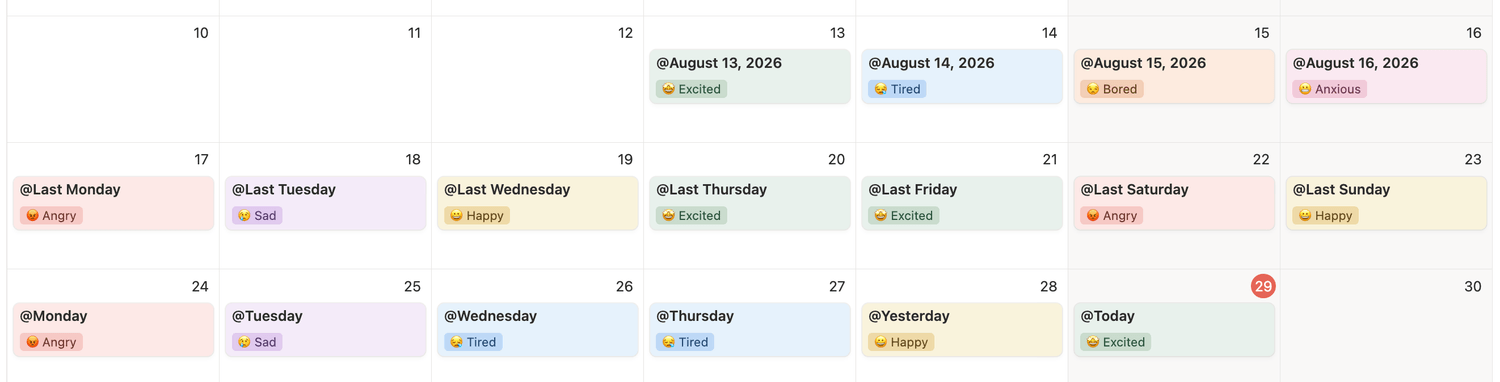
Create a calendar view that will dynamically display your month in color, giving you an immediate high-level picture of how your energy and emotions evolved throughout the weeks.
1️⃣ Click + to add another view and select Calendar.
2️⃣ Toggle off Show page icon, then click Done.
3️⃣ Open the settings, go to Property visibility and make the Mood property visible so the selected mood displays on each day’s card.
4️⃣ In the settings, go to Conditional color and click New color setting. Select the Mood property.
Summary
With just two properties, seven quick buttons, and a recurring template, you now have a frictionless mood-tracking system.
Stay tuned for part 2, where we’ll explore how to build automated monthly summaries and mood analytics using Notion formulas and rollups!
Latest blog posts
notion by moona
High-quality Notion workspaces for entrepreneurs with high standards.