How to build an Eisenhower matrix in Notion? Step-by-step tutorial
If you’ve ever felt overwhelmed by your to-do list, the Eisenhower matrix can help you decide what to do now, what to plan for later, what to delegate, and what to delete.
1. What is the Eisenhower matrix?
The Eisenhower matrix is a prioritization method that organizes tasks using two questions:
⭐️ Is this important?
⚠️ Is this urgent?
That gives you four quadrants:
🟢 Urgent and important: tasks to do now
🟡 Not urgent and important: tasks to schedule
🔵 Urgent and not important: tasks to delegate
🔴 Not urgent and not important: tasks to delete
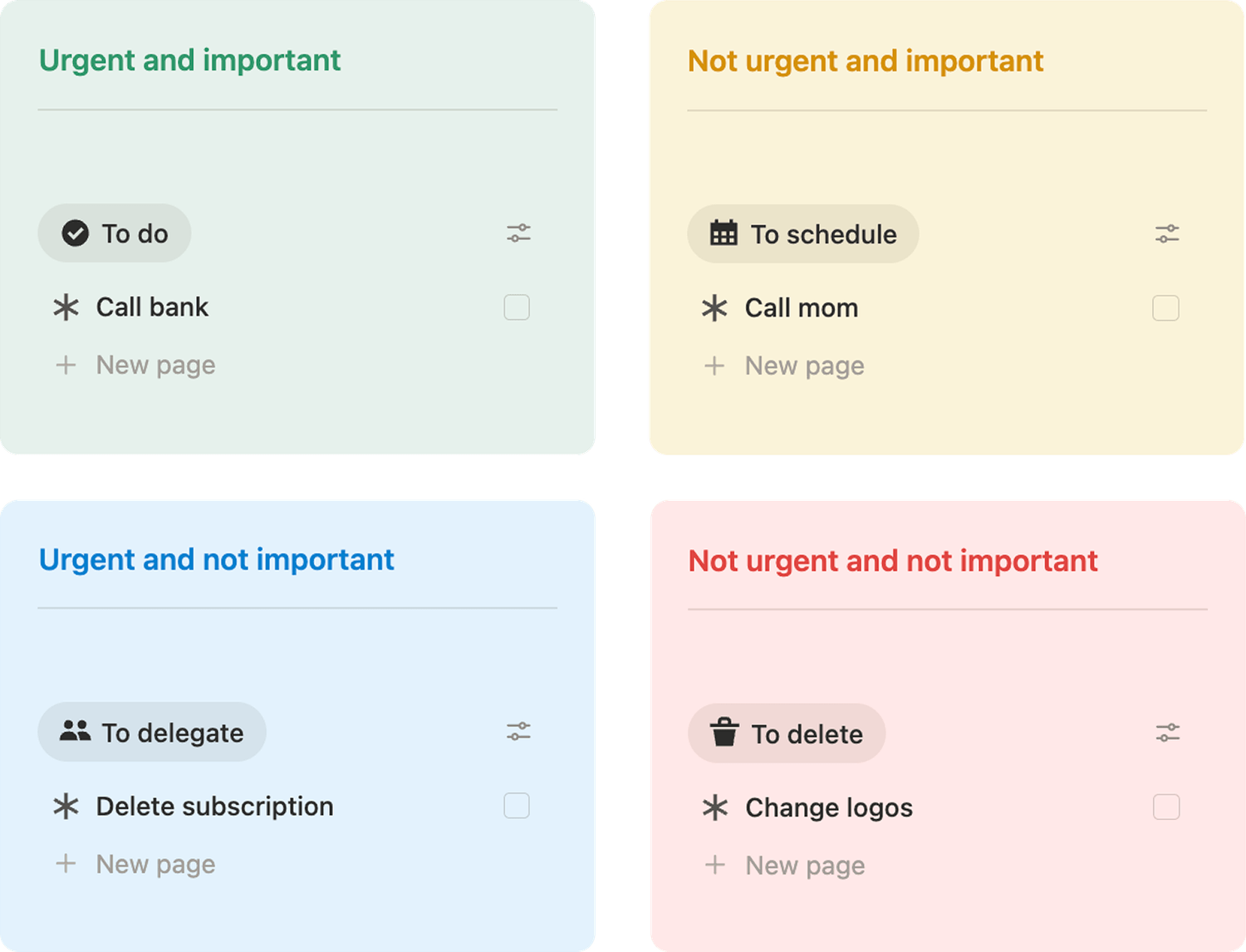
Today, you’re building your own inside Notion so you can finally organise and prioritise your tasks. Let’s go!
Psssst: if you're more comfortable with a video, you can find the YouTube tutorial at the end of this article!
2. Create the task database
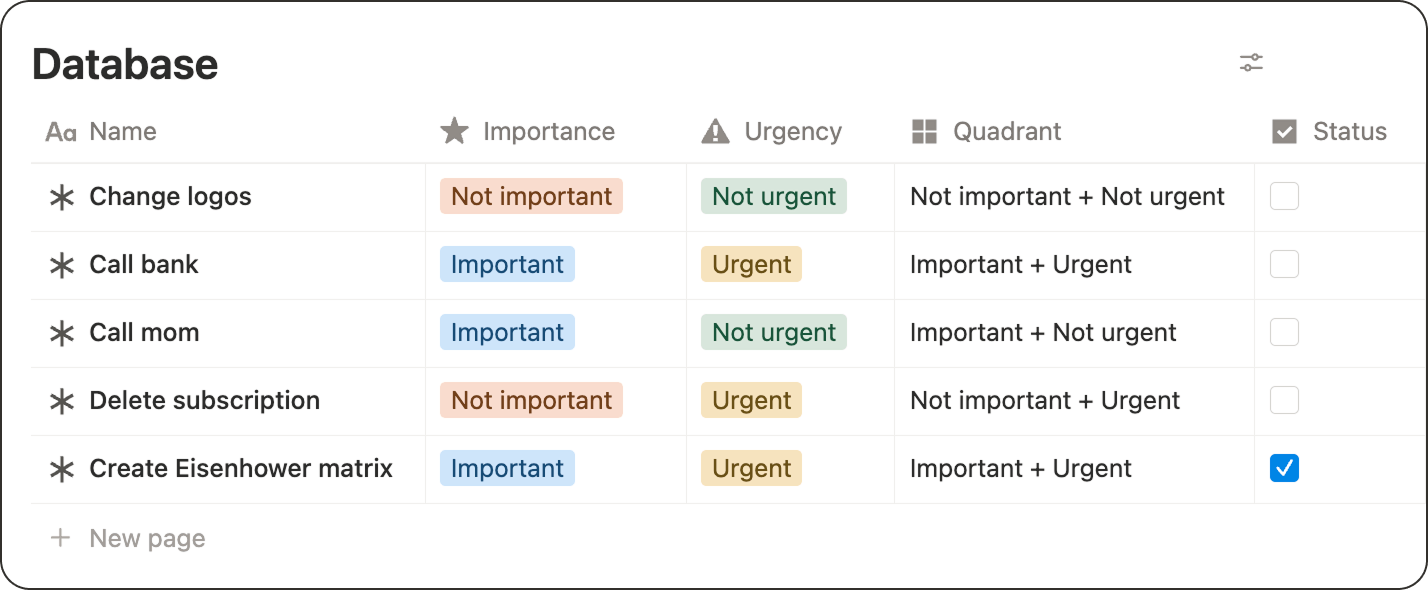
First, create the database that will hold all your tasks. Add the following properties:
1️⃣ A Select property called Importance with two options: important and not important.
2️⃣ Another Select property, called Urgency, with two options: urgent and not urgent.
3️⃣ A Formula property called Quadrant. This will combine Importance and Urgency, so we can filter tasks easily later. Copy and paste this formula into it:
if( or( empty(prop(”Importance”)), empty(prop(”Urgency”))), "", prop(”Importance”) + " + " + prop(”Urgency”))
4️⃣ A Checkbox property you can call Status.
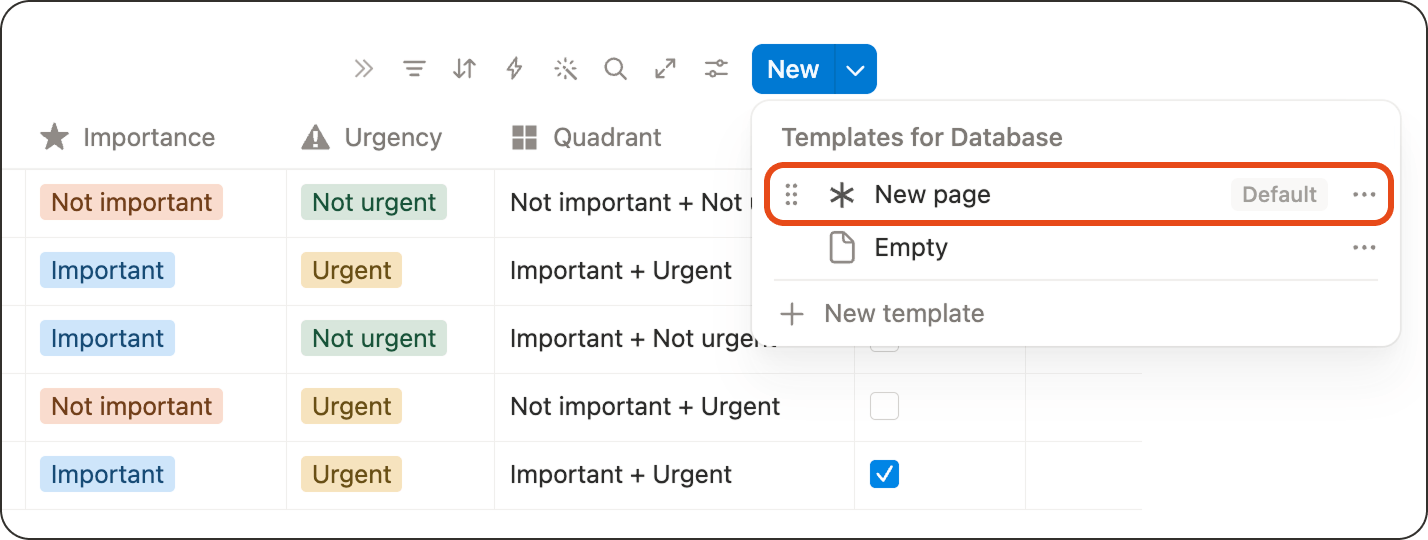
💡 Optional, but recommended: create a new template for your tasks, with the icon you want and set it as default. This way, every new task looks consistent.
3. Build the matrix layout
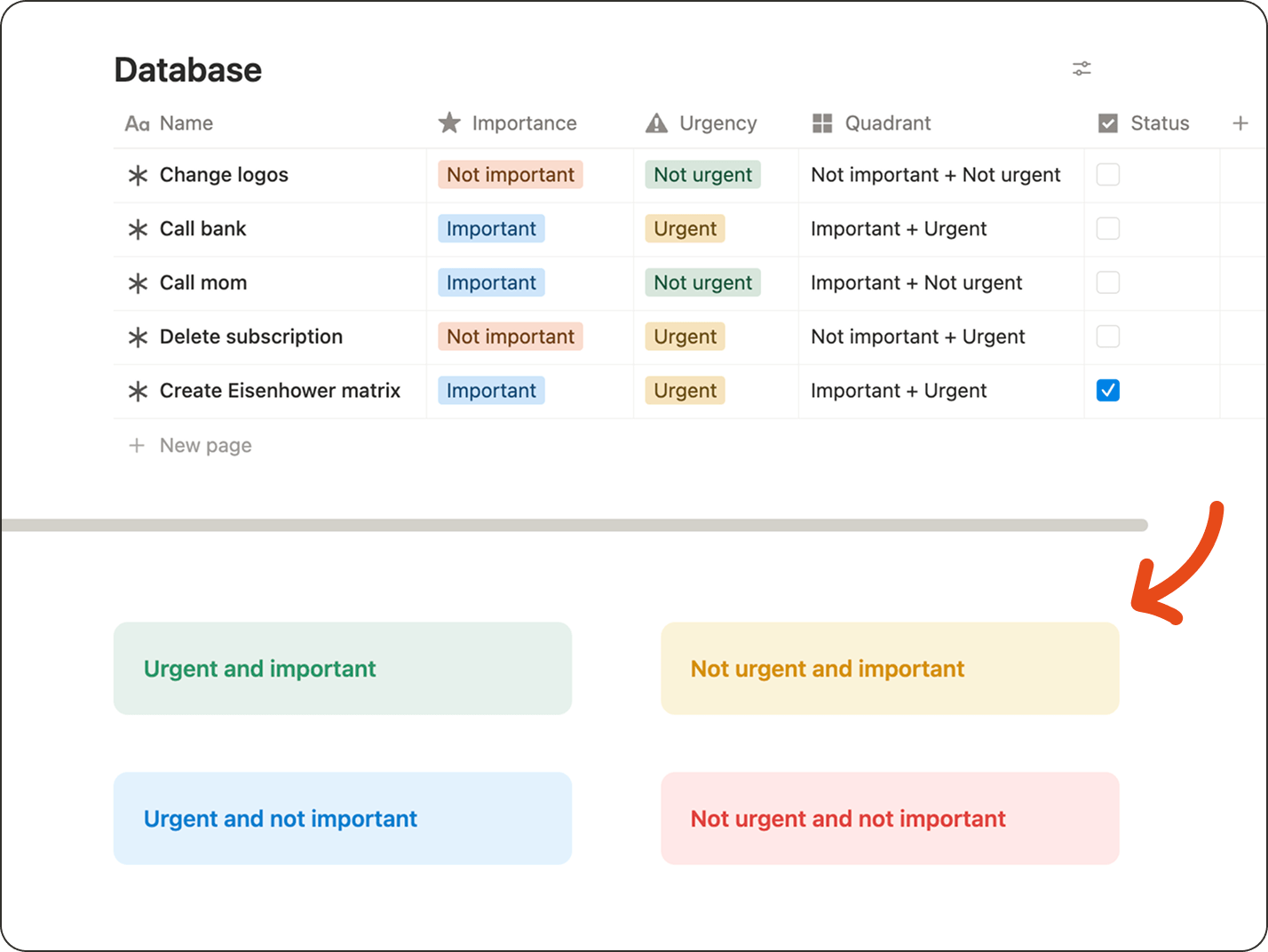
Now that your database is ready, let’s build the visual matrix:
1️⃣ Create two columns by typing /2 columns.
2️⃣ Inside each column, add a callout block (type /callout).
Repeat 1️⃣ and 2️⃣ on the line below so you end up with four callouts total.
Change the colours, and name each callout like this:
🟢 Urgent and important
🔵 Urgent and not important
🟡 Not urgent and important
🔴 Not urgent and not important
4. Add a filtered list view inside the first callout
Now, inside the Urgent and important callout:
1️⃣ Type a few dashes to create a divider line under the quadrant title.
2️⃣ Then type /list and choose Link to existing data source. Select your task database.
3️⃣ Once the list view appears, open Settings and rename the view to To do.
4️⃣ Go to Layout and make sure it’s set to List. Turn off Show data source title.
5️⃣ Go back and open Property visibility. Set the Status checkbox as visible.
6️⃣ Go back again and open Filter. Set the filters for that quadrant:
⭐️ Importance = important
⚠️ Urgency = urgent
✅ Status = unchecked
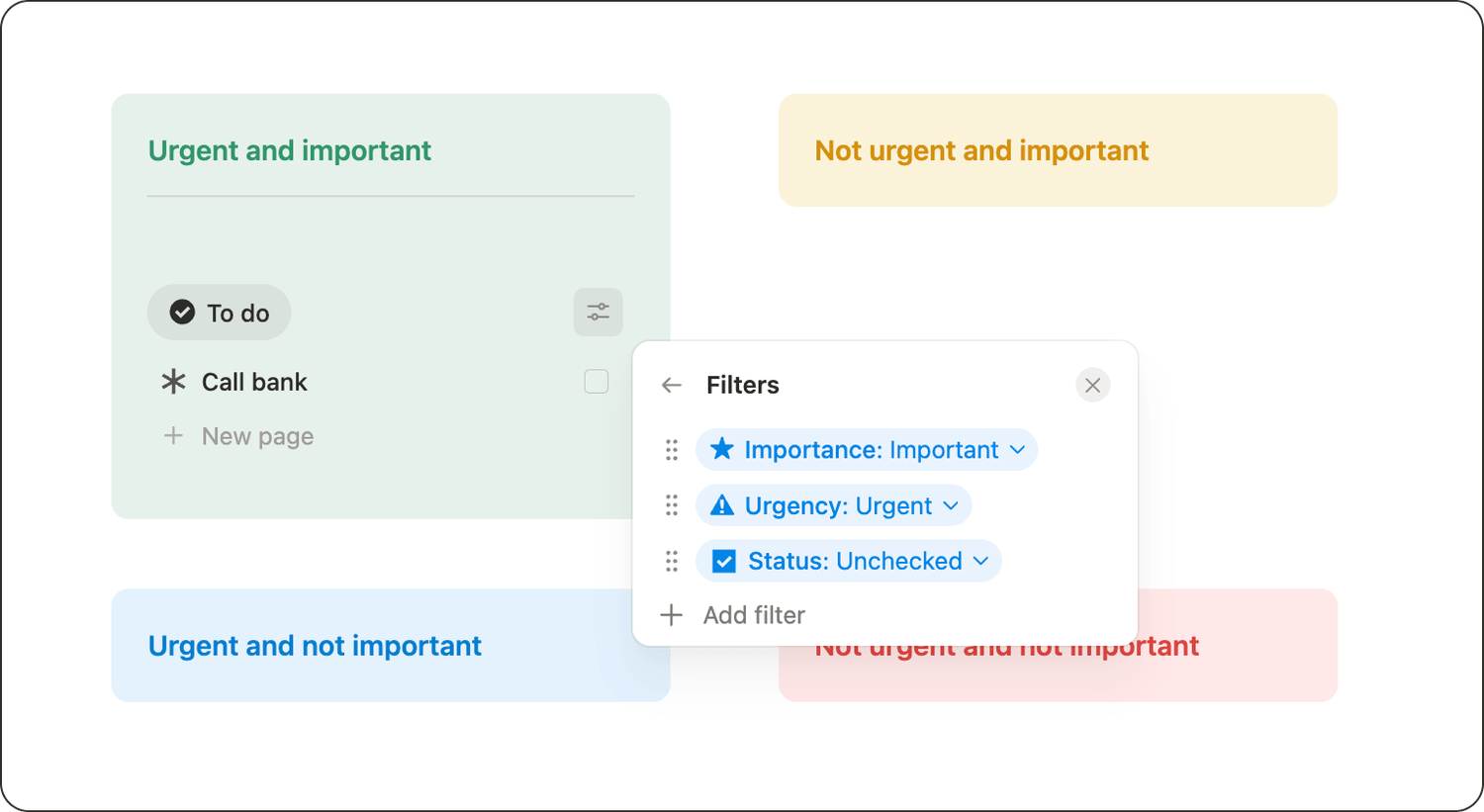
💡 Once your filters are set, Notion will show them at the top of the list. For a cleaner look, you can hide them using the following trick: expand the column slightly until the little filter icon appears, click it to hide the filter bar, then resize the column back.
And if you want extra breathing room for the design, add a blank line under the divider.
5. Repeat for the other 3 quadrants
Now repeat the exact same steps in the other callouts, making sure your view name and filters match the quadrant:
Not urgent and important
Name: To schedule
Filters:
⭐️ Importance = important
⚠️ Urgency = not urgent
✅ Status = unchecked
Urgent and not important
Name: To delegate
Filters:
⭐️ Importance = not important
⚠️ Urgency = urgent
✅ Status = unchecked
Not urgent and not important
Name: To delete
Filters:
⭐️ Importance = not important
⚠️ Urgency = not urgent
✅ Status = unchecked
And that’s it: your Eisenhower Matrix is ready. 🥳
6. How to use your Eisenhower matrix
👉 Add a task
You can add tasks directly inside any quadrant, and they’ll automatically inherit the right importance and urgency.
You can also add tasks from your main database, select importance and urgency, and they’ll instantly appear in the correct quadrant.
👉 Finish a task
When you finish a task, just tick the checkbox and it disappears from the matrix.
Latest blog posts
notion by moona
High-quality Notion workspaces for entrepreneurs with high standards.