How to add a progress bar to your Notion content calendar
Want to see at a glance how close each piece of content is to being ready?
A progress bar is a simple way to make your Notion content calendar more visual and keep track of your production workflow.
In this fifth tutorial in the content calendar series, we’ll turn your content’s production status into a progress value, then display it as a bar. It only takes one formula property.
🚨 This tutorial builds on the content calendar created previously.
If you haven’t built yours yet, start with that tutorial (or download the ready-made template if you’d rather skip building it from scratch).
📹 Prefer to follow along visually?
You’ll find a step-by-step video tutorial at the end of this article.
1. Create a formula property
1️⃣ Open the Table view of your content calendar
2️⃣ Add a new property and choose Formula as the property type
3️⃣ Click the property title and rename it Progress bar
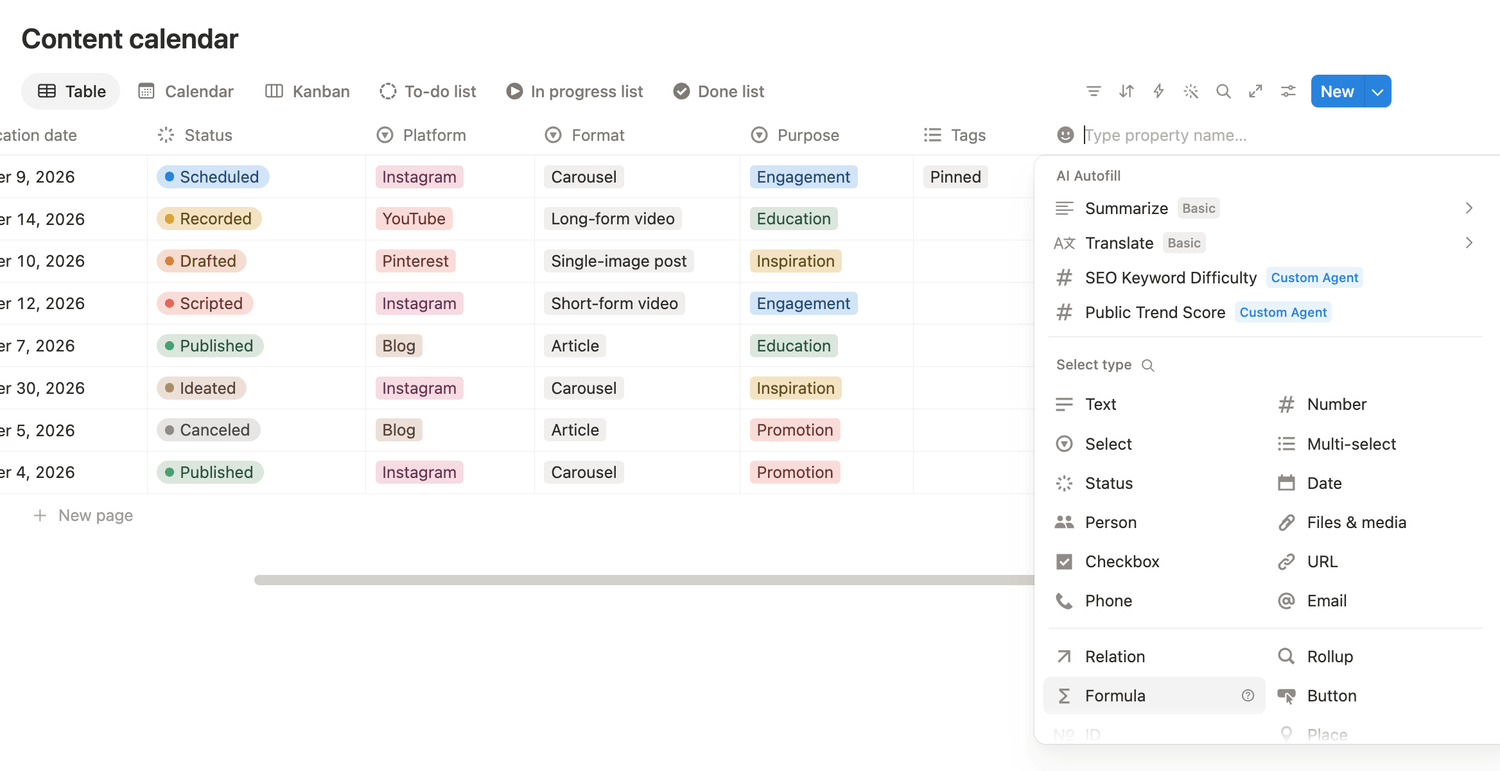
2. Add the progress formula
In your new Progress bar property settings, select Edit property and click Edit formula to open the formula editor.
Copy the formula below and paste it into the editor:
ifs(
or(prop("Status") == "Not started", prop("Status") == "Canceled"), 0,
prop("Status") == "Ideated", 1 / 7,
prop("Status") == "Drafted", 2 / 7,
prop("Status") == "Scripted", 3 / 7,
prop("Status") == "Recorded", 4 / 7,
prop("Status") == "Edited", 5 / 7,
prop("Status") == "Reviewed", 6 / 7,
or(prop("Status") == "Scheduled", prop("Status") == "Published"), 1,
0)
The formula checks the status of each piece of content and returns a number between 0 and 1. As your content moves through the production stages, that value increases. Not started and Canceled return 0, while Scheduled and Published return 1.
If you’re using the same production stages as the original template, you can keep the formula as it is. If you’ve customized your workflow, adjust it before moving on:
👉 Match the status names exactly to the options in your own Status property
👉 If your status property has a different name, replace Status throughout the formula
👉 If you’ve added or removed stages, update the fractions so they increase in the order of your workflow, keeping 0 for the starting point and 1 for completion
Once the formula is ready, click outside the editor to close it.
3. Turn the number into a progress bar
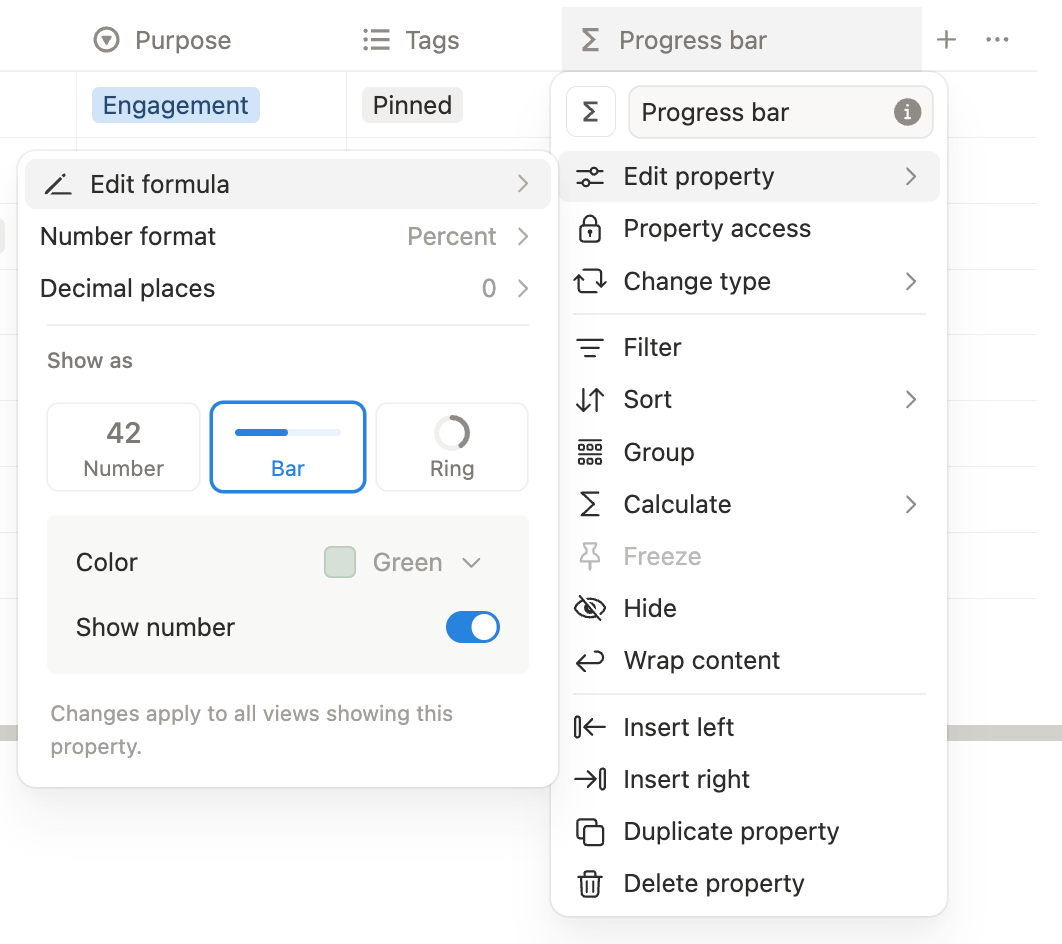
Click the Progress bar property title again and go back to Edit property. Configure the display settings as follows:
👉 Set Number format to Percent
👉 Set Decimal places to 0
👉 Under Show as, select Bar
Your formula now appears as a visual progress bar instead of a plain number.
4. Show the progress bar in your other views
You don’t have to keep your progress bar in the Table view. Show it wherever it helps you keep an eye on production.
For each view where you want it to appear:
1️⃣ Open the view
2️⃣ Click the settings icon on the top right corner
3️⃣ Select Property visibility
4️⃣ Click the crossed-out eye icon next to Progress bar to make it visible
And that’s it! 🥳
Your content calendar now shows how far each piece has progressed through your workflow, with the bar updating automatically whenever you change its status.
A small upgrade, but a handy one for spotting what’s nearly ready and what still needs a little work.
Latest blog posts
notion by moona
High-quality Notion workspaces for entrepreneurs with high standards.