How to save anything to Notion in seconds with the Save to Notion extension
If you use Notion to organize your resources, you probably already know how useful it can be to keep your articles, videos, websites, tools, and inspiration in one dedicated database.
But there’s one problem: if saving a new resource takes too much time, you probably won’t do it consistently.
That’s where the Save to Notion browser extension comes in.
In this tutorial, I’ll show you how to install and set up the Save to Notion extension on desktop, so you can save anything you find online directly into your Notion resource library in just a few seconds.
And if you prefer watching the process step by step, the video version of this tutorial is available at the end of the article.
⚠️ If you haven’t built your Notion resource library yet, I recommend starting with that tutorial first, then coming back to this one once your database is ready.
What is Save to Notion?
Save to Notion is a browser extension that lets you send online resources directly to a Notion database.
Instead of manually copying a link, opening Notion, creating a new page, pasting the URL, and filling out your properties one by one, you can do everything from your browser.
This makes your Notion resource library much easier to maintain, because adding new resources becomes quick and effortless.

Step-by-step installation and set up tutorial
1. Install the Save to Notion extension
Open your browser on desktop and go to savetonotion.so
From there, click Add to my browser and follow the installation instructions.
Once the extension is installed, you should see the Save to Notion icon appear in your browser toolbar.
⚠️ The Save to Notion extension works on desktop, not on mobile. Make sure you’re setting it up from your computer.
2. Log in and create a new form
Click the Save to Notion icon in your browser toolbar.
The first thing you’ll need to do is log in with the email address you use for your Notion account. Once you’re logged in, you’ll be able to create your first form.
Click Add new form, then choose Start from scratch.
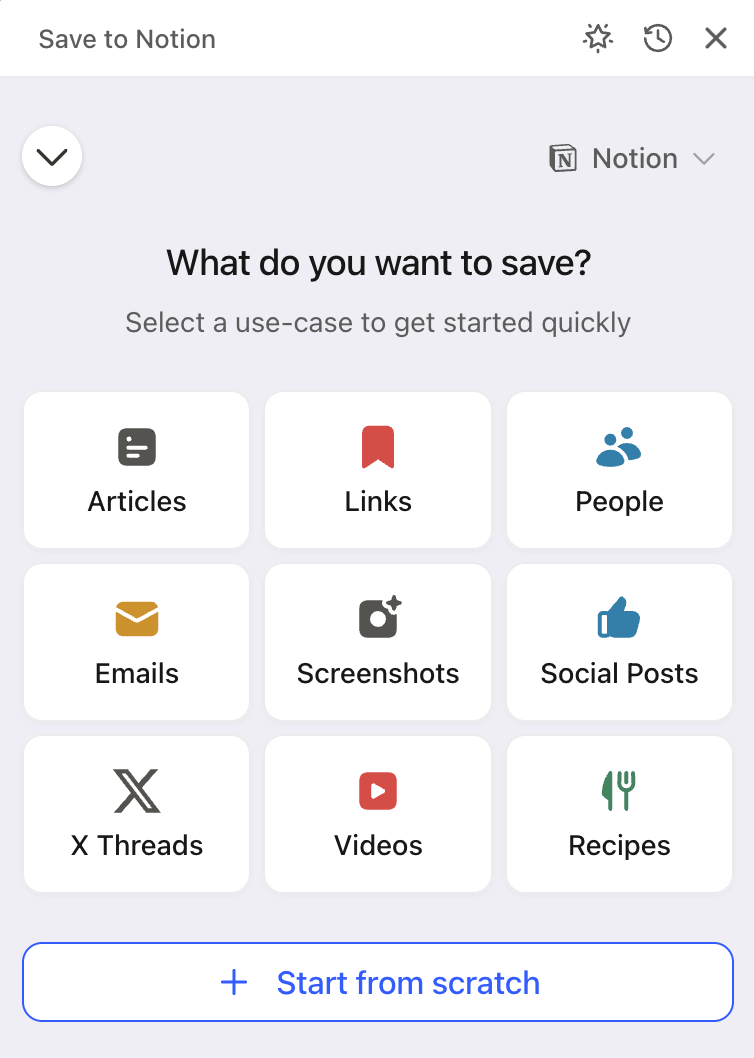
3. Connect your Notion workspace and database
Save to Notion will now ask you which Notion workspace and database you want to connect.
Choose the workspace where you created the resource library from the previous tutorial. Then, use the search bar to find and select that exact database.
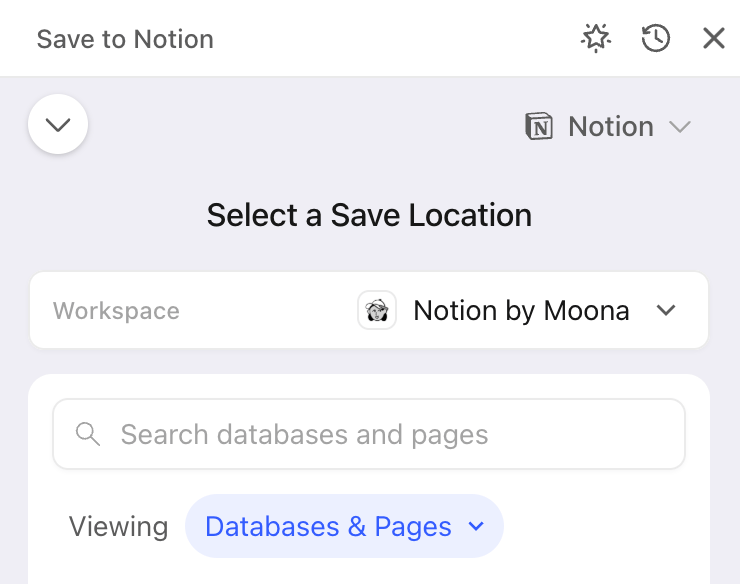
Once it’s selected, you can start configuring the form that will appear every time you save something from the web.
4. Configure your Save to Notion form
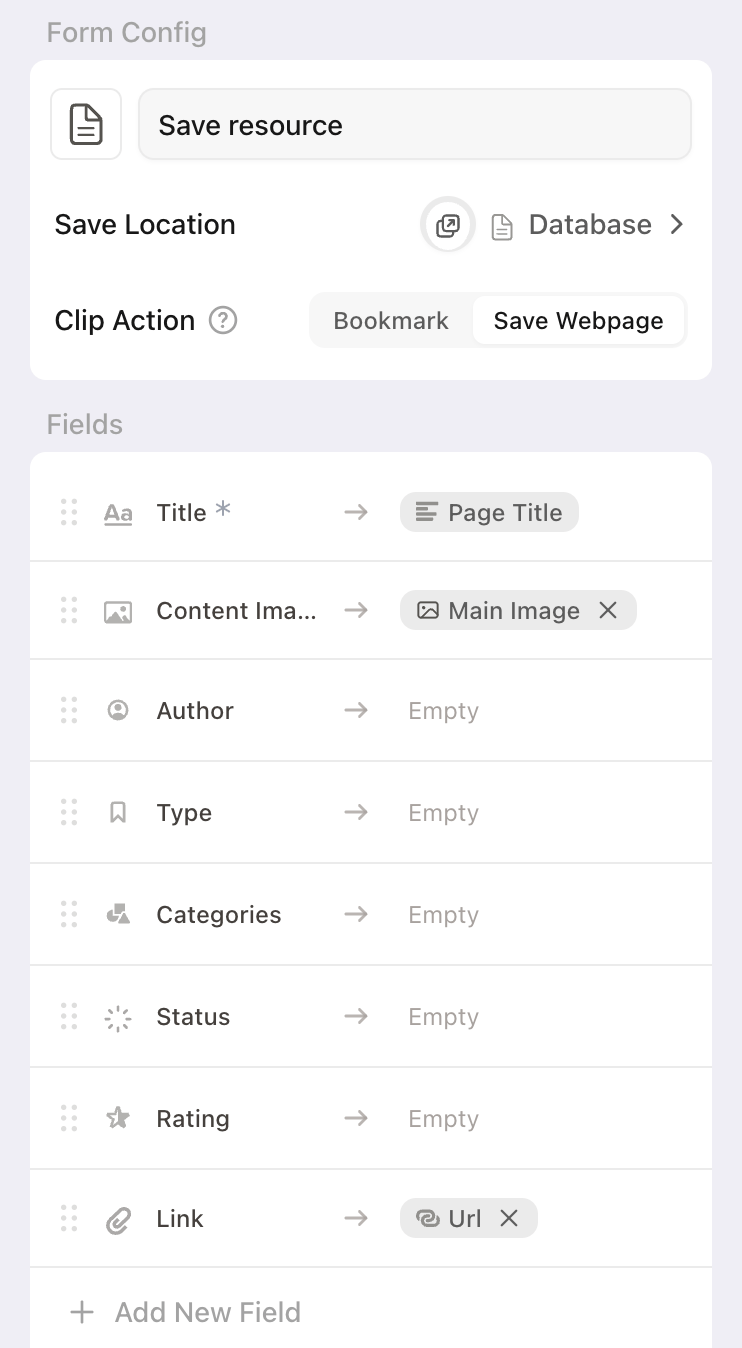
By default, Save to Notion always shows three fields: title, content image, and template. Keep the title and content image fields as they are, and delete the template field.
Then, click Add new field and add the properties of your resource library:
👉 Author
👉 Type
👉 Categories
👉 Status
👉 Rating
👉 Link
Leave the default values empty. This way, whenever you save a new resource, you’ll be able to fill in only the information that matters for that specific item.
By default, Save to Notion suggests using the main image of the page for your Files and media property. Remove this option and choose URL instead. This will save the link to the resource in that property.
5. Save your form
Once all your fields are set up, save your form. And that’s it!
Your Save to Notion extension is now connected to your Notion resource library. From now on, you’ll be able to save resources to Notion directly from your browser.
How to save a resource to Notion
Now let’s see how it works in practice.
Open any web page you want to save. It could be an article, a YouTube video, a social media post, a tool, or any other online resource.
Then click the Save to Notion icon in your browser toolbar. Your form will open.
The title should automatically populate with the title of the page. Then, you can add the missing details manually, such as:
👉 The author’s name
👉 The resource type
👉 The relevant categories*
👉 The status
👉 The rating, if you’ve already consulted the resource
*You can even create new categories directly from the form if needed.
Once everything looks good, click Save to Notion.
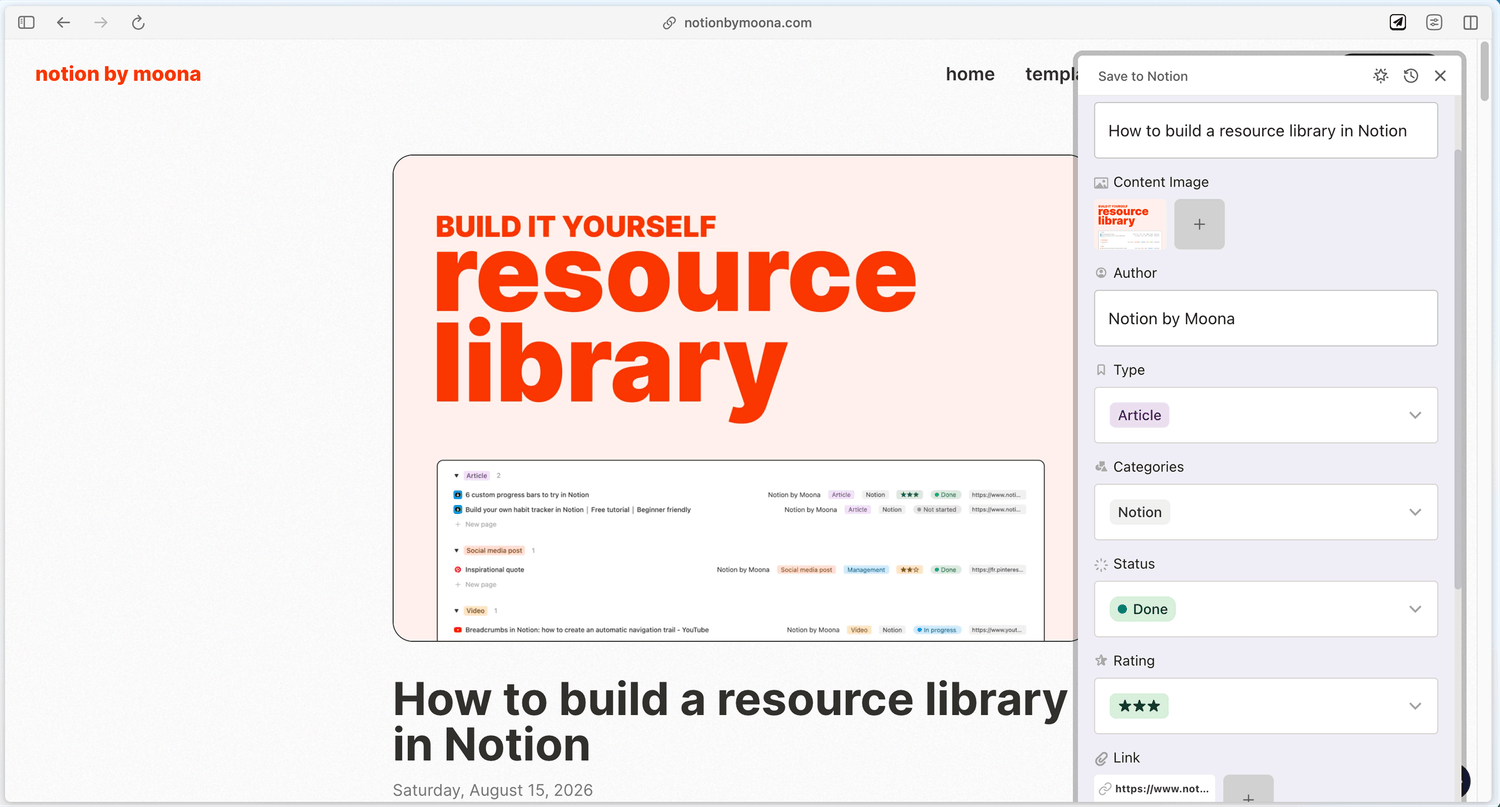
Now, if you go back to your Notion resource library, the new resource should appear directly in your database.
Why this makes your Notion system easier to use
The main benefit of Save to Notion is that it removes friction.
Instead of manually copying and pasting links, creating new pages, and filling in your database from scratch, you can capture resources directly from the web in just a few clicks.
And this matters because the easier it is to add things to your system, the more likely you are to actually use it. Over time, this makes your resource library much more reliable.
You’ll be able to collect useful resources as soon as you find them, organize them with your Notion properties, and come back to them whenever you need.
Final thoughts
With your Notion resource library and the Save to Notion extension, you now have a simple workflow to collect and organize everything you discover online.
Your database gives you the structure. The extension gives you the speed.
Together, they make it much easier to build a digital library that you’ll actually keep using.
Latest blog posts
notion by moona
High-quality Notion workspaces for entrepreneurs with high standards.