Upgrade your Notion content calendar with automatic monthly recaps
Managing a content calendar is useful, but getting a clear overview of everything you worked on each month is what helps you improve your strategy.
In this tutorial, you’ll learn how to add automatic monthly recaps to your Notion content calendar.
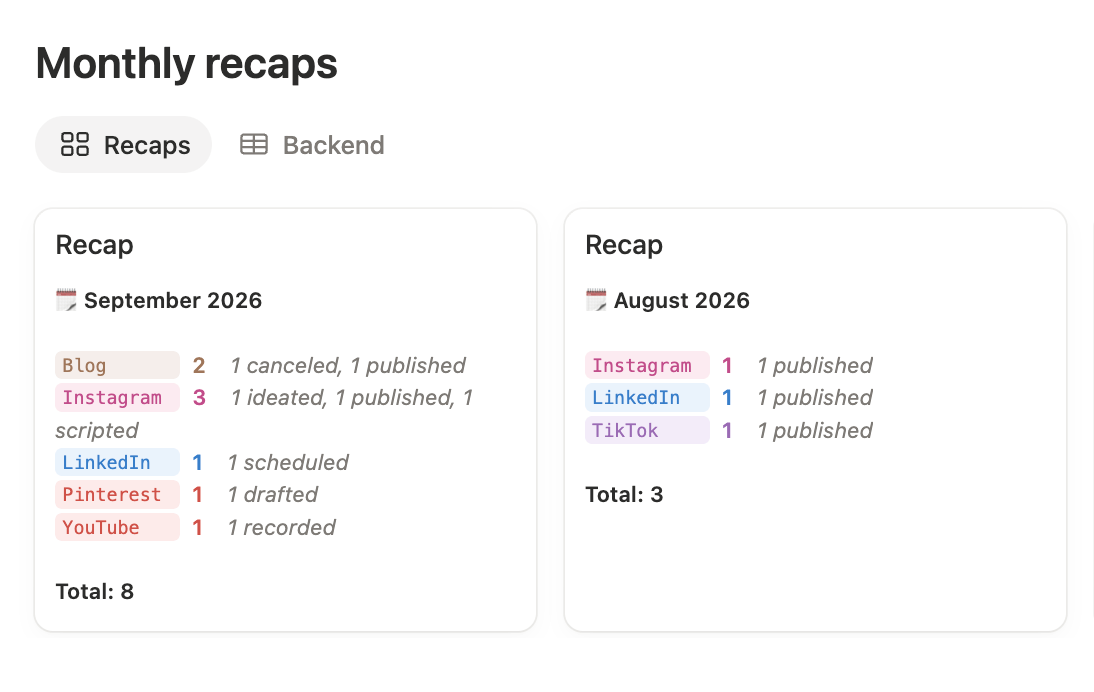
Once the system is set up, Notion will create a new recap every month and display all the content associated with that period, grouped by platform.
🚨 This tutorial builds on the content calendar created in the previous guide.
If you haven’t built yours yet, start with that tutorial (or download the free ready-made template) before continuing.
📹 Prefer to follow along visually?
You’ll find a step-by-step video tutorial at the end of this article.
What you’ll build
By the end of this tutorial, you’ll have:
👉 A dedicated Monthly recaps database
👉 A relation connecting it to your Content calendar
👉 A recurring template that automatically creates one recap per month
👉 A gallery view displaying your recaps in a clean, visual format
👉 A formula summarizing the content published on each platform
1. Create the Monthly recaps database
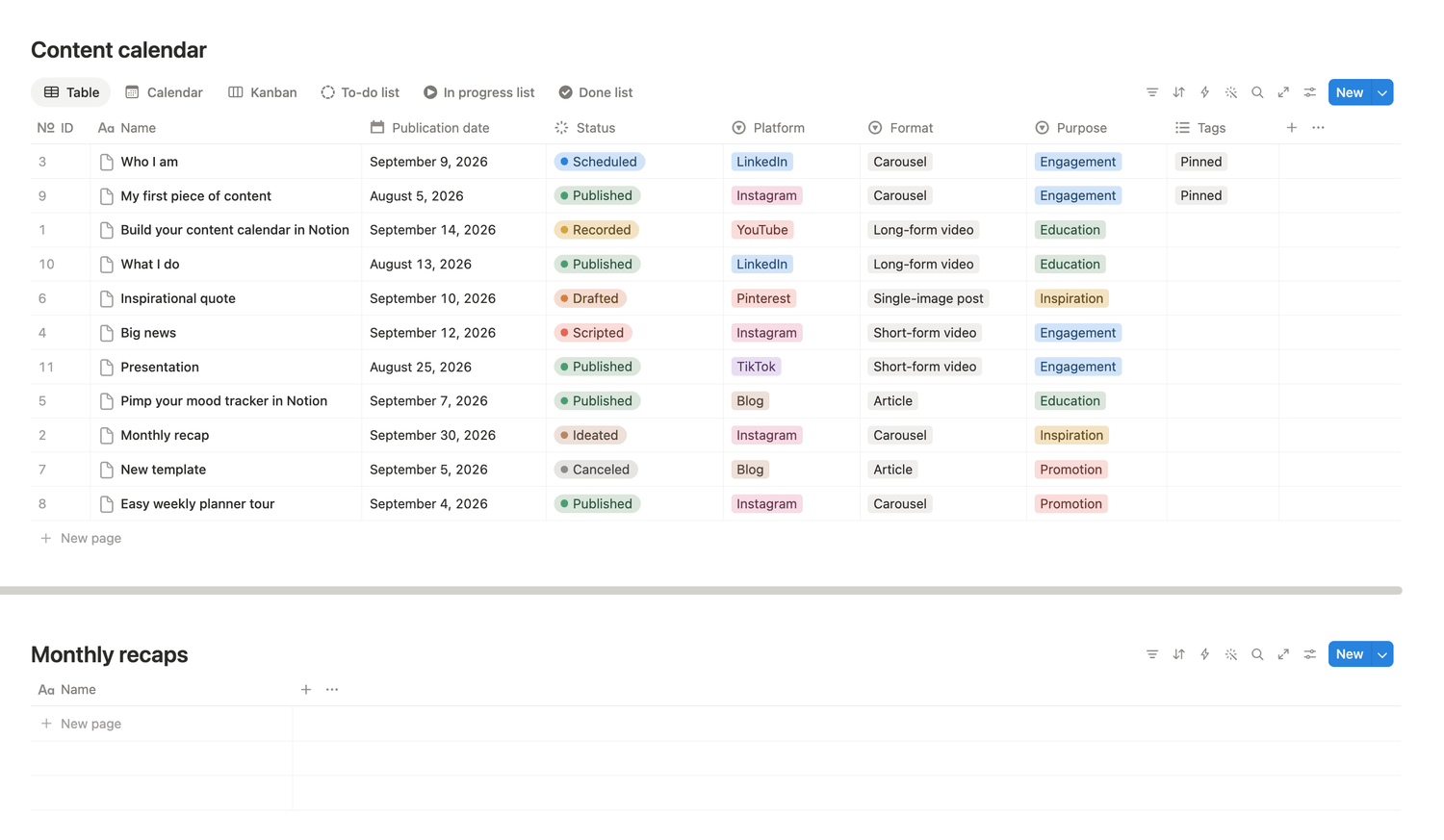
For the easiest workflow, place your Content calendar and Monthly recaps databases on the same Notion page.
Under your Content calendar database:
1️⃣ Type /database
2️⃣ Select the inline database option
3️⃣ Choose New empty data source
4️⃣ Rename the database Monthly recaps
Keeping both databases together will make the system easier to configure and use later.
2. Turn on sub-items
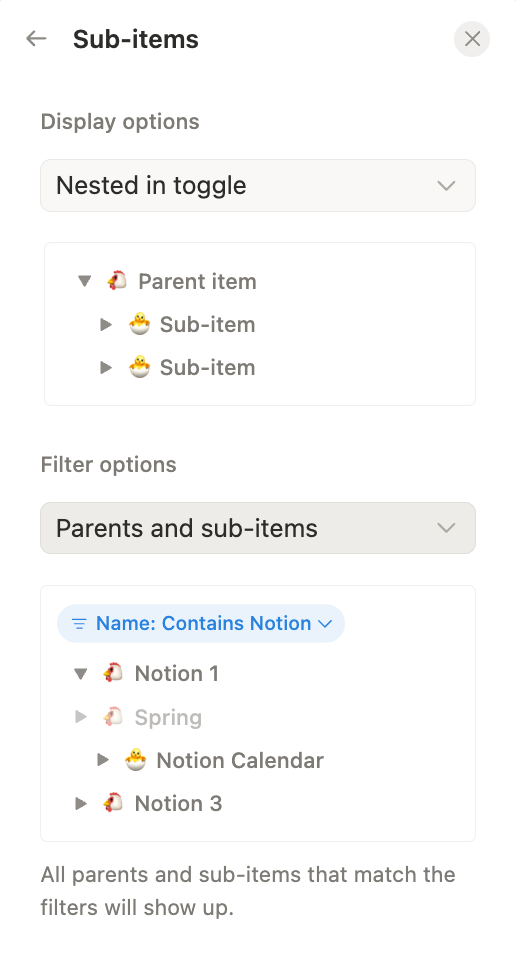
Open the Monthly recaps database settings, then:
1️⃣ Click More settings
2️⃣ Select Sub-items
3️⃣ Click Turn on sub-items
4️⃣ Under the filter options, choose Parents and sub-items
This will allow you to use one parent page as the connection point between your databases while creating a separate sub-item for each monthly recap.
3. Add the required properties
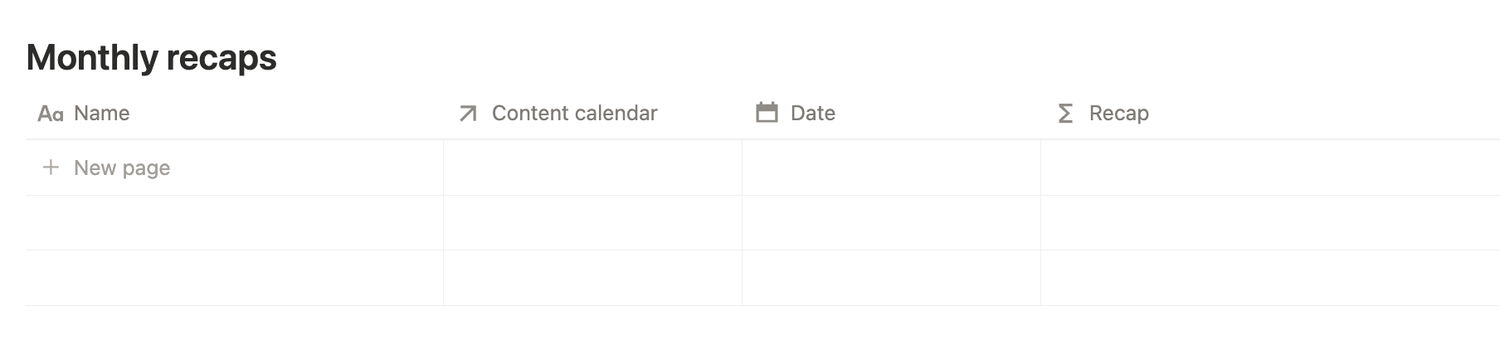
Add the following three properties to the Monthly recaps database:
1️⃣ Content calendar
Create a Relation property and connect it to your Content calendar database. ⚠️ If you have multiple databases with similar names, double-check that you select the correct one.
Turn on Two-way relation, then click Add relation.
2️⃣ Date
Create a Date property. It will be used to identify the month associated with each recap.
3️⃣ Recap
Create a Formula property and rename it Recap. This property will generate the visual summary displayed on each gallery card.
At this point, the basic structure of the database is ready. ✅
4. Create the “All” page
Create a new page in the Monthly recaps database and name it All.
This page acts as the central connection between the Content calendar and Monthly recaps databases. Every content item will be related to it, while each individual monthly recap will be created as one of its sub-items.
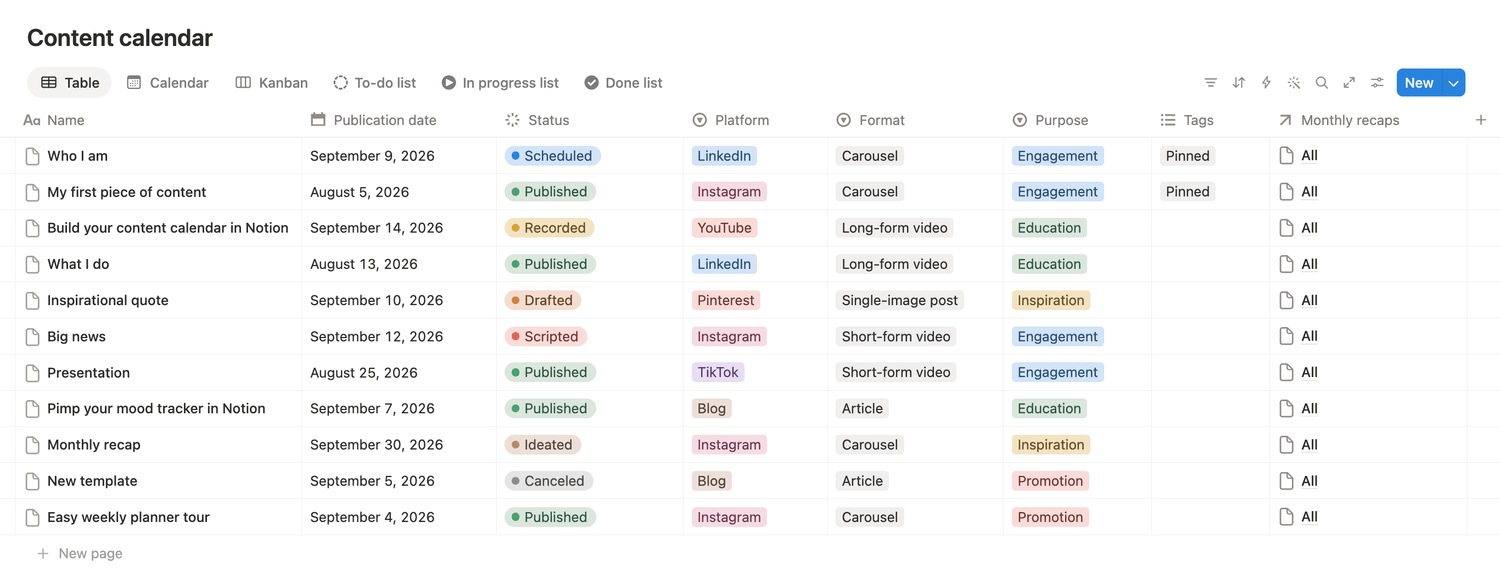
Next, return to your Content calendar database. In the new Monthly recaps relation property, select All for every existing content item.
5. Update your Content calendar page template
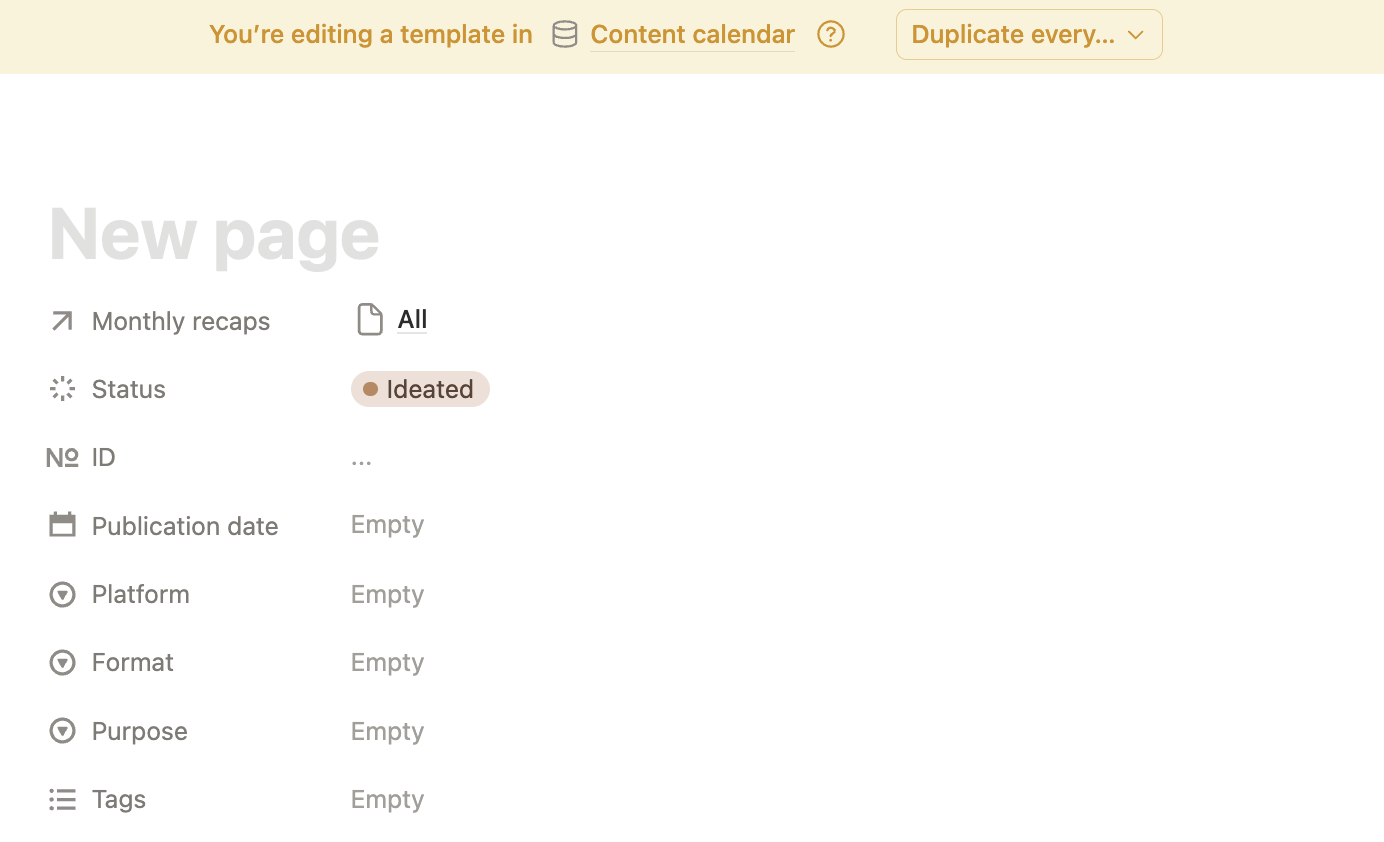
To avoid assigning All manually whenever you create a new content item, update your default Content calendar page template:
1️⃣ Click the small arrow next to the blue New button
2️⃣ Select New template
3️⃣ In the template properties, set the Monthly recaps relation to All
4️⃣ Click outside the template to close it, Notion saves your changes automatically
5️⃣ Open the template menu again
6️⃣ Click the three dots next to the template you’ve just created
7️⃣ Select Set as default
8️⃣ Choose For all views in Content calendar
From now on, every content item created with this template will automatically be connected to your recap system.
6. Create an automatic monthly recap template
Return to the Monthly recaps database and create a new database template:
1️⃣ Click the arrow next to the blue New button
2️⃣ Select New template
3️⃣ Name the template Recap
4️⃣ Set the Date property to Today — Date when duplicated
5️⃣ Set Parent item to All
Next, automate the template:
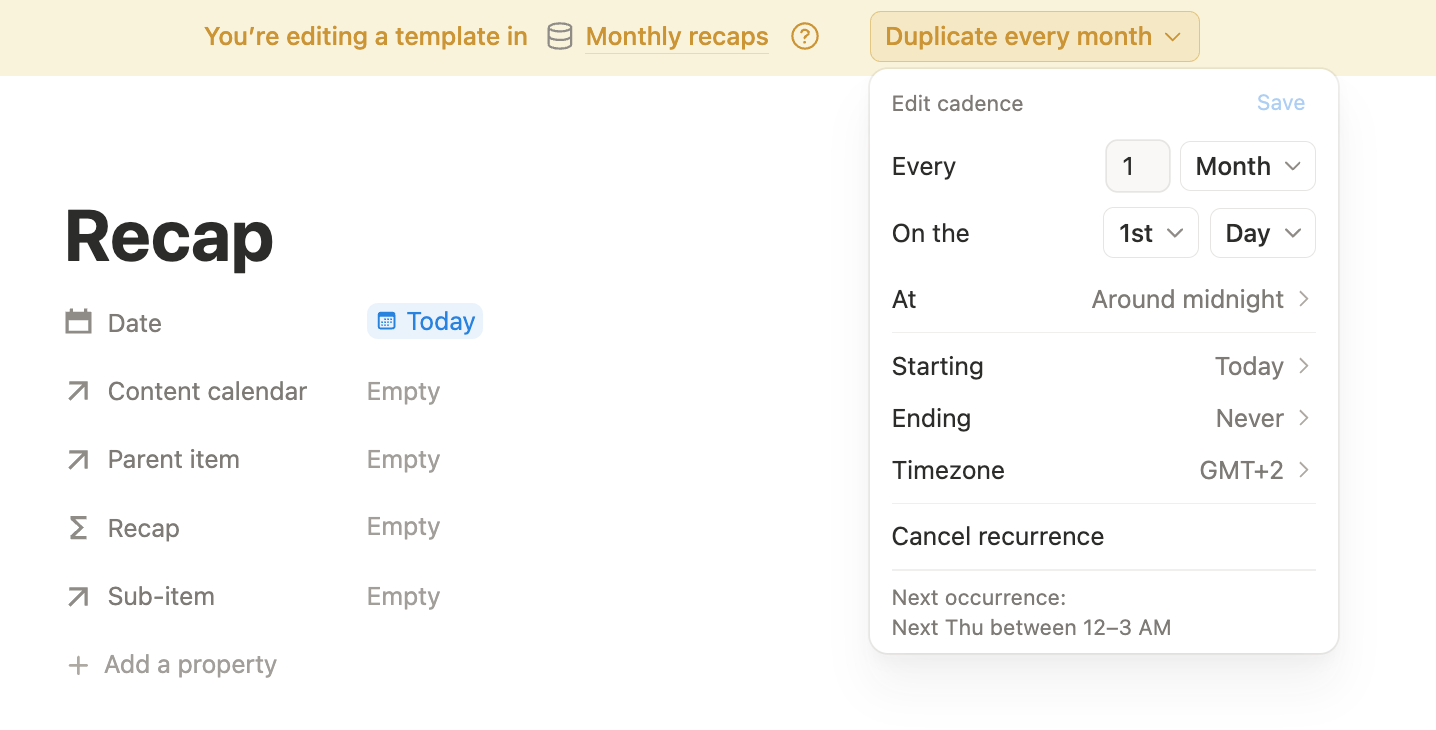
1️⃣ Click Duplicate every in the yellow banner at the top of the template
2️⃣ Select Month
3️⃣ Set the schedule to repeat every 1 month, on the 1st day of the month
4️⃣ Click Save
Notion will now create a new recap automatically on the first day of every month.
7. Add the recap formula
Open the Recap formula property and paste in the pre-made formula below:
if(empty(prop("Date")), "", lets(
linkedContents, if(empty(prop("Parent item")), prop("Content calendar"),
prop("Parent item").map(current.prop("Content calendar")).flat()),
monthContents, linkedContents.filter(not empty(current.prop("Publication date")) && current.prop("Publication date") >= prop("Date") && current.prop("Publication date") < parseDate(formatDate(prop("Date"), "YYYY-MM") + "-01").dateAdd(1, "month")),
platformLines, monthContents.map(if(empty(current.prop("Platform")), "Not defined", format(current.prop("Platform")))).unique().sort().map(lets(
platformName, current, platformLabel, if(platformName == "Not defined", "Undefined", platformName),
platformColor, ifs(
["Blog", "Email"].includes(platformName), "brown",
["Discord", "TikTok"].includes(platformName), "purple",
["Facebook", "LinkedIn"].includes(platformName), "blue",
["Instagram"].includes(platformName), "pink",
["Pinterest", "Quora", "YouTube"].includes(platformName), "red",
["Reddit"].includes(platformName), "orange",
["Snapchat"].includes(platformName), "yellow",
["WhatsApp"].includes(platformName), "green",
"gray"),
platformContents, monthContents.filter(if(platformName == "Not defined", empty(current.prop("Platform")), format(current.prop("Platform")) == platformName)),
statusSummary, platformContents.map(if(empty(current.prop("Status")), "Not defined", format(current.prop("Status")))).unique().sort().map(lets(statusName, current, statusCount, platformContents.filter(if(statusName == "Not defined", empty(current.prop("Status")), format(current.prop("Status")) == statusName)).length(), format(statusCount) + " " + statusName.lower()))
.join(", "),
style(platformLabel.substring(0, 10) + repeat(" ", max(0, 10 - platformLabel.length())), "c", platformColor, platformColor + "_background"
) + " " + style(format(platformContents.length()), "b", platformColor) +
if(empty(statusSummary), "", " " + style(statusSummary, "i", "gray"))))
.join("\n"), style("🗓️ " + formatDate(prop("Date"), "MMMM YYYY"), "b") + "\n\n" +
if(empty(platformLines), style("Total: 0", "b"), platformLines + "\n\n" + style("Total: " + format(monthContents.length()), "b"))))
The formula collects the content connected through the All page, filters it by the recap’s month, and organizes the results by platform.
You can customize the platformColor section to match your own platforms and brand colors. Simply replace the platform names with the exact names used in your Content calendar, keeping each one inside quotation marks.
⚠️ Be careful not to change anything else in the formula’s structure, as even a small modification could prevent it from returning the expected result.
8. Create the Recaps gallery view
Now create a view designed specifically for browsing monthly summaries:
1️⃣ Add a new view to the Monthly recaps database
2️⃣ Choose the Gallery layout
3️⃣ Name the view Recaps
4️⃣ Turn off Show page icon
5️⃣ Turn on Wrap all content
6️⃣ Set Card preview to None
The, adjust the view settings as follows:
1️⃣ Open Settings, click Property visibility, hide the properties shown by default and display only the Recap property
2️⃣ Go back to Settings, go to Sub-items and select Disabled
3️⃣ Go back to Settings, click Filter, choose Name and add a filter where Name does not contain All
4️⃣ Go back to Settings one more time, open Sort, select Date and choose New to old
Once your view is ready, you can move the original Table view to the right and rename it Backend. If you don’t need it for maintenance, you can also delete it.
How the finished system works
Once the setup is complete, the workflow runs automatically:
1️⃣ New content items are connected to All through your default Content calendar page
2️⃣ On the first day of each month, Notion creates a new recap page in the Monthly recaps database
3️⃣ The page receives the current date and becomes a sub-item of All
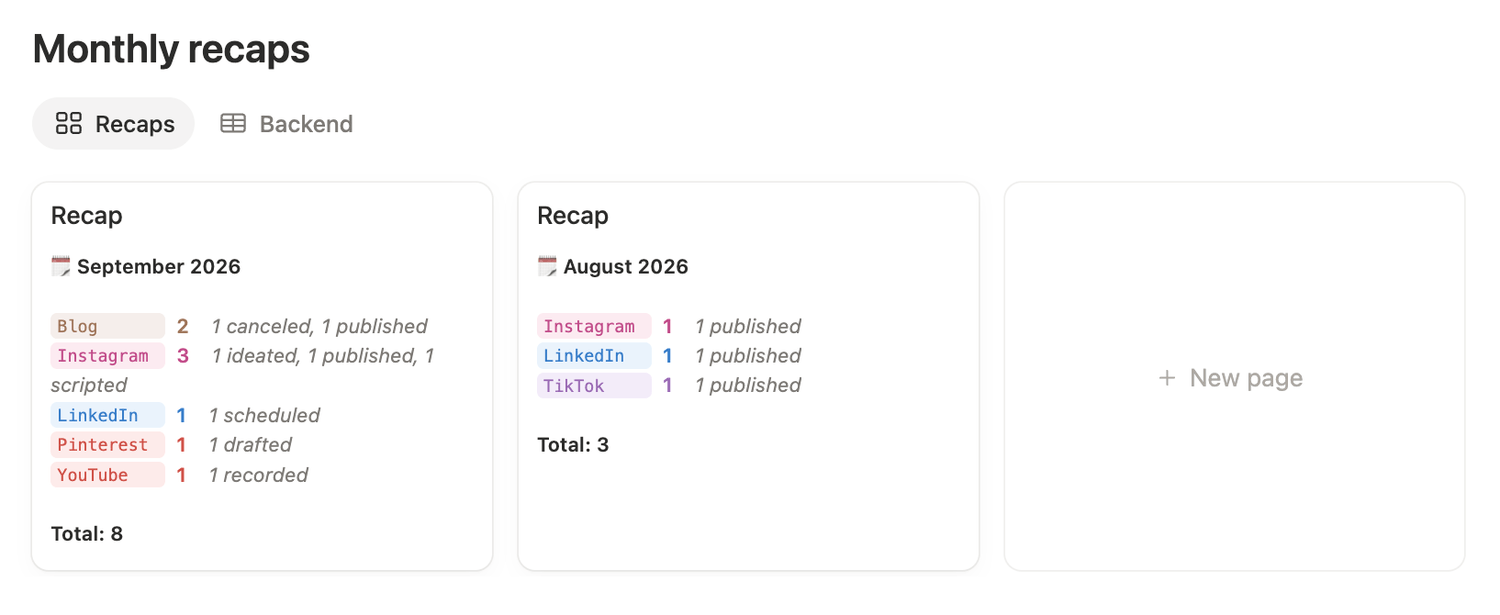
4️⃣ The formula filters your content by month and displays the matching items by platform
5️⃣ The recap appears at the top of your gallery view
You get a clear record of what you handle each month, without manually assembling reports or duplicating pages. Once configured, the system keeps running in the background. Every month, a fresh recap will be waiting for you, without you having to lift a finger.
Your Content calendar is no longer only a planning tool. It now gives you an automatic monthly overview of your output, making it easier to review your consistency, compare platforms, and spot gaps in your publishing strategy.
Latest blog posts
notion by moona
High-quality Notion workspaces for entrepreneurs with high standards.