Upgrade your Notion content calendar with one-click repurposing
Creating content takes time, so every strong idea should be able to work more than once.
By adding a simple Repurpose button to your Notion content calendar, you can turn an existing piece of content into a new item with a single click.
The new item will keep the original title and strategic purpose, receive a dedicated tag, link back to its source, and open automatically, ready to be adapted for another platform and format.
Here’s how to set it up.
🚨 This tutorial builds on the content calendar created previously.
If you haven’t built yours yet, start with that tutorial (or download the ready-made template) before continuing.
📹 Prefer to follow along visually?
You’ll find a step-by-step video tutorial at the end of this article.
1. Add a new tag
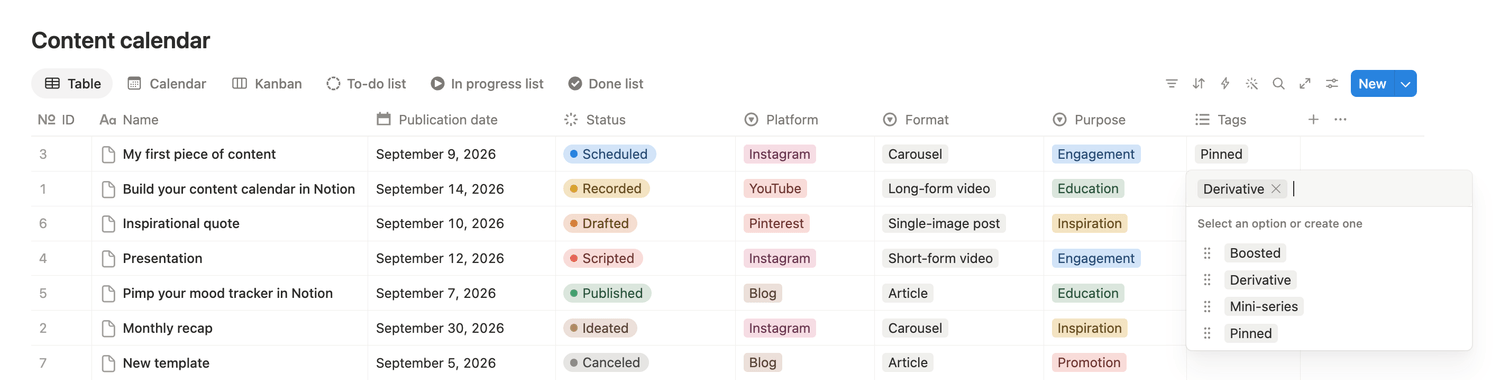
Open your Content calendar database, and go to your Tags property. Add a new option and name it Derivative.
This tag will make it easy to distinguish repurposed content from the original piece in your content calendar.
2. Add a new relation property
This relation will connect each copy to its original.
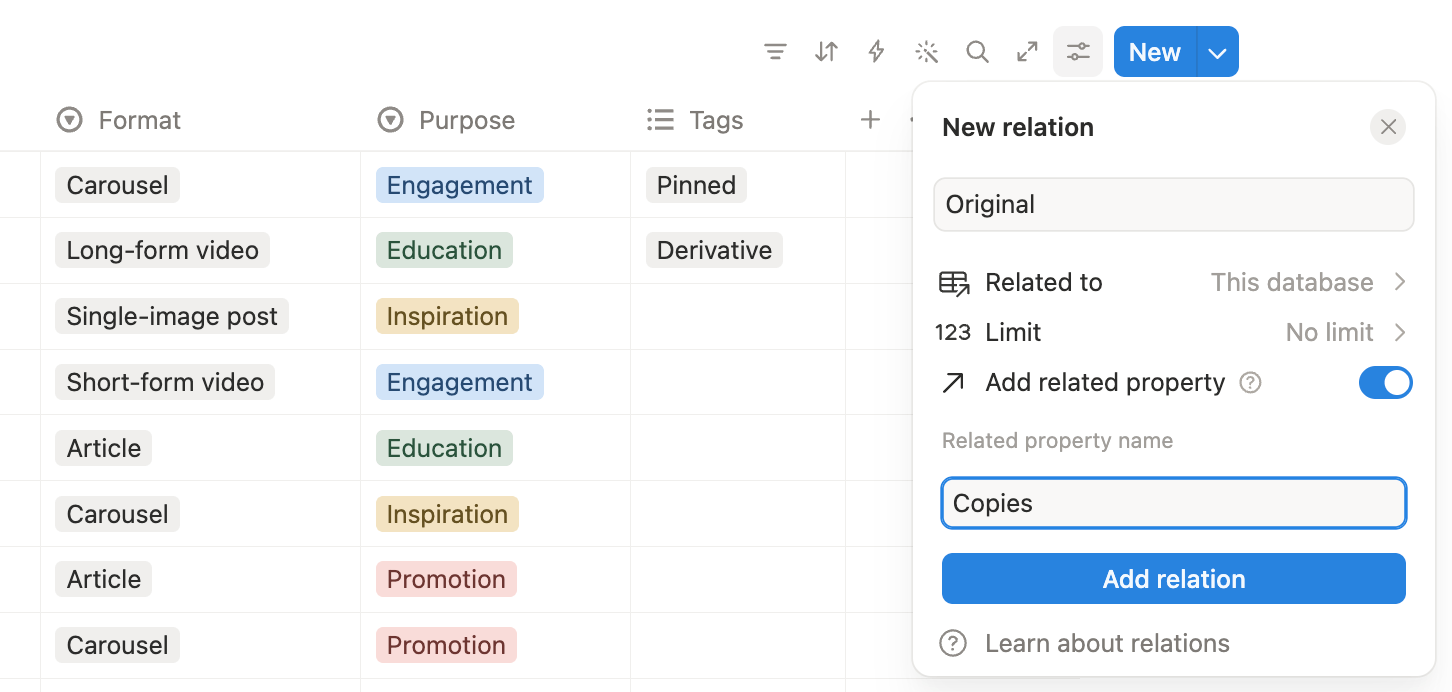
1️⃣ Add a new Relation property
2️⃣ When Notion asks you to select a database, choose the content calendar you are currently working in
3️⃣ Rename the new relation Original.
4️⃣ Turn on Add related property
5️⃣ Rename the related property Copies
6️⃣ Click Add relation
You now have a two-way relationship:
👉 Original identifies the source of a repurposed item
👉 Copies displays every new piece created from the original
This makes it easy to see how one idea has been reused across different channels and formats.
3. Create the Repurpose button
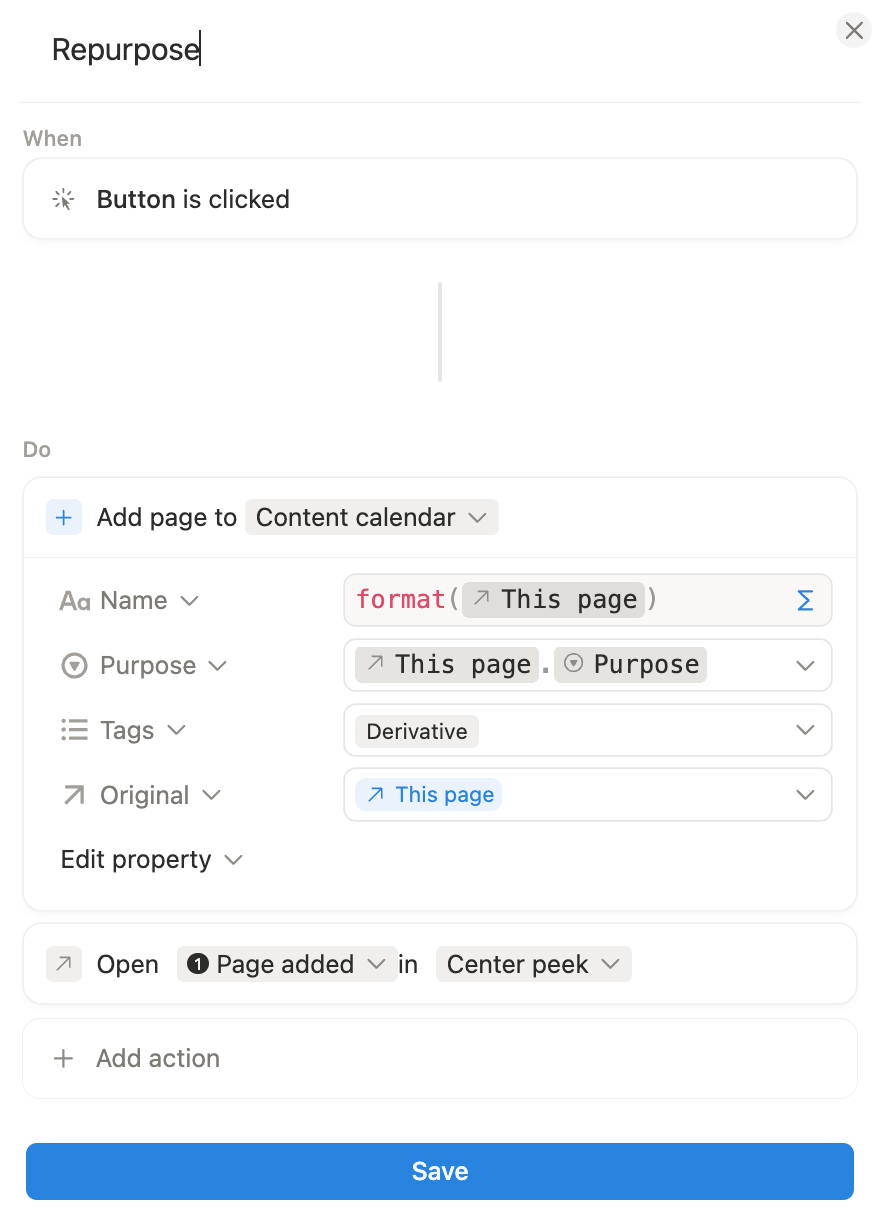
Add a new Button property to your database. Rename the property Repurpose, choose an icon if you’d like, and select Edit automation.
The button editor will open. Change the label displayed on the button to Repurpose.
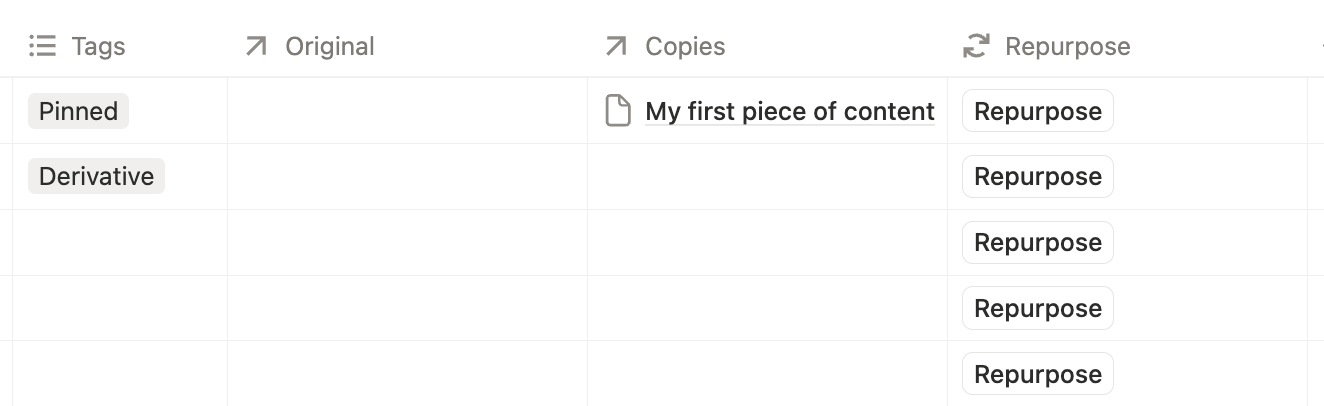
The button will now be configured to create a new content item and automatically fill in the information it should inherit.
3.1. Create a new page from the button
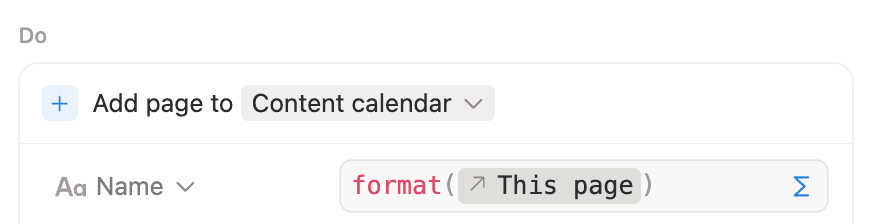
Click New action, select Add page to, and choose your content calendar database.
The Name property appears automatically. Click the formula icon, type format, add an opening parenthesis, select This page in the property list and close the parenthesis.
This formula gives the new content item the same title as the original.
Click Save.
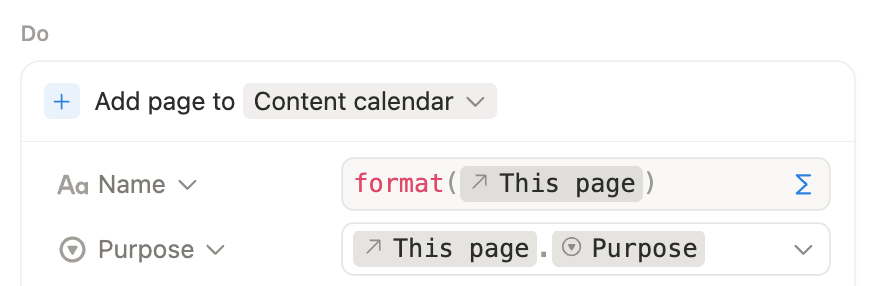
3.2. Keep the same strategic purpose
Click Edit property and select Purpose.
Click the value field, choose Custom formula, and select This page from the property list. Add a dot, then select the Purpose property.
The resulting value should reference: This page.Purpose
This ensures that the repurposed content keeps the same strategic purpose as its source.
3.3. Tag the new item as a derivative
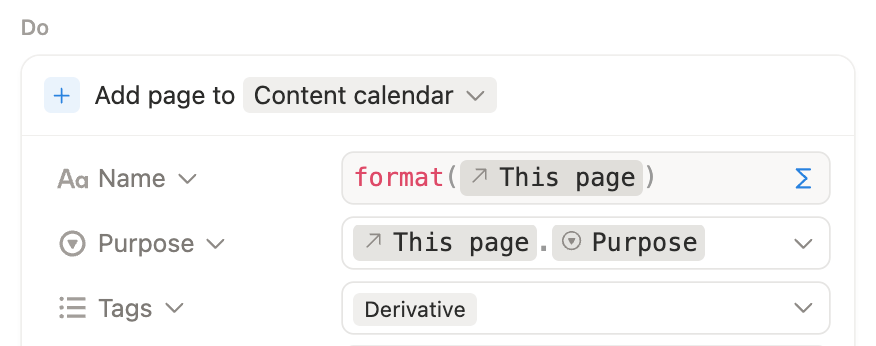
Click Edit property again and select Tags.
Click the value field and choose the Derivative option you created earlier.
Every item generated by the button will now be clearly identified as repurposed content.
3.4. Link the new item to the original
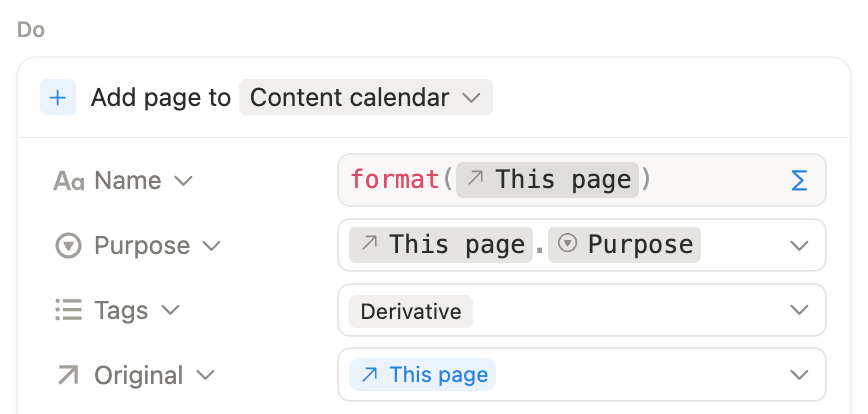
Click Edit property once more and select Original.
Click the value field and choose This page.
Whenever the button creates a new item, Notion will automatically link it back to the source content. Thanks to the two-way relation, the new item will also appear in the original page’s Copies property.
3.5. Open the new page automatically
Add another action and choose Open page, form, or URL. Under Select page, choose Page added, then click Save.
After creating a repurposed item, the button will immediately open its page so you can continue editing without having to find it in the database.
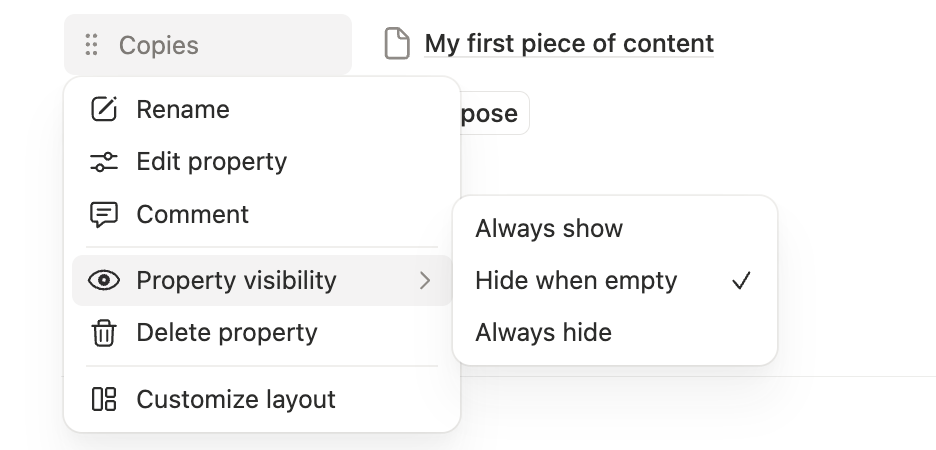
4. Clean page layout
For a cleaner page layout, open any content item in your database and find the Copies property in the visible properties. Open Property visibility and select Hide when empty.
Repeat the same process for the Original property.
This keeps your pages clean while still showing the relationships whenever they’re relevant.
5. Start repurposing your content
Your Repurpose button is now ready to use.
Whenever you want to reuse an existing piece of content, click Repurpose. Notion will:
👉 Create a new item with the same title
👉 Keep the same strategic purpose
👉 Add the Derivative tag to the new item
👉 Link the new item to the original
👉 Open the new page automatically
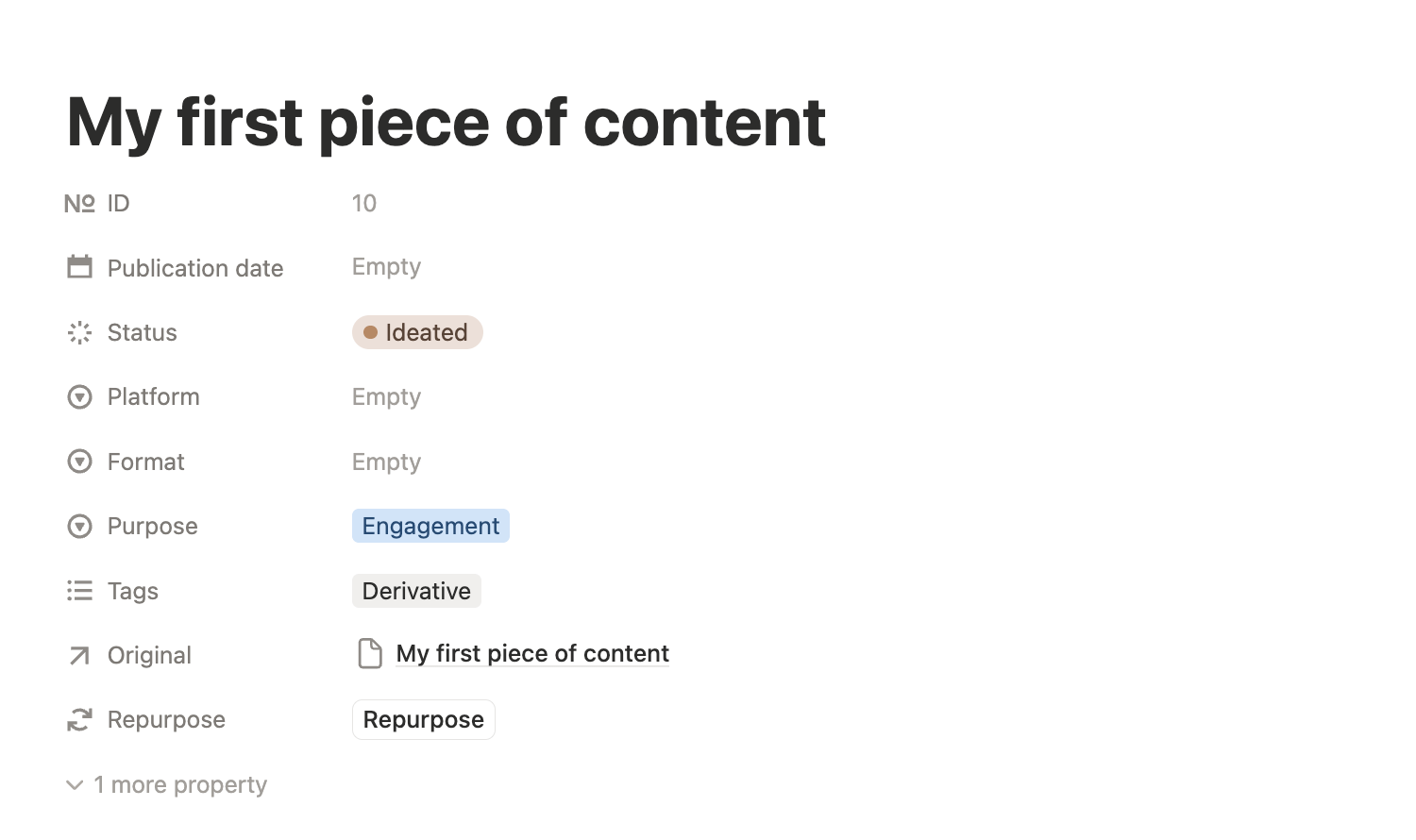
From there, choose a new publication date, platform, and format to adapt the idea for a different channel.
Instead of starting from scratch every time, you can build on content you already know is valuable and get more from every idea you create. ✌️
Latest blog posts
notion by moona
High-quality Notion workspaces for entrepreneurs with high standards.