Upgrade your Notion mood tracker with automatic monthly recaps
A daily mood tracker is a simple way to understand how you feel over time. In the first part of this tutorial, we created a basic Notion mood tracker that lets you log your mood every day in one click and view your entries in a calendar.
Now, we’re going to take that system one step further by adding an automatic monthly recap. By the end of this tutorial, your mood tracker will let you:
😀 Log your mood every day in one click
🗓️ See your daily entries in a calendar
🔄 Generate a new monthly recap automatically
📋 Display your recaps in a clean gallery view
If you haven’t created the original mood tracker yet, follow the first tutorial before continuing: build your Notion mood tracker.
📹 And if you prefer watching the process step by step, the video version of this tutorial is available at the end of the article.
1. Turn on sub-items
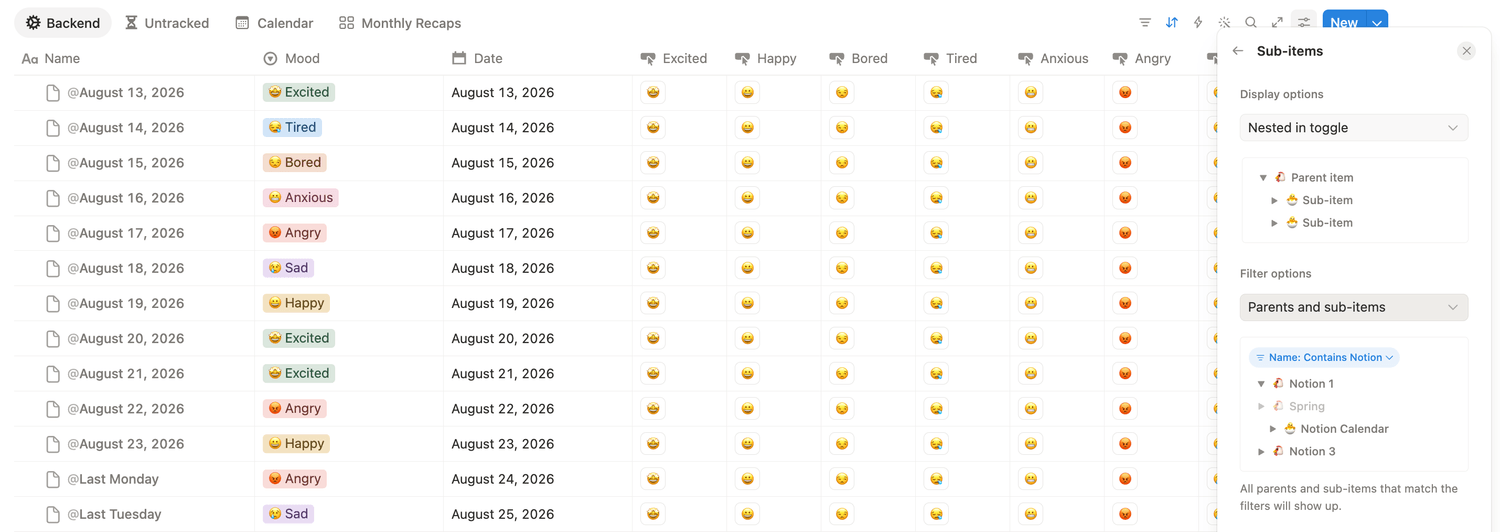
Open the mood tracker you created in the previous tutorial and go to the table view. Click the Settings icon in the top-right corner of the database. Select More settings, then open Sub-items and turn them on.
Make sure the sub-item settings are configured as follows:
👉 Display: Nested in toggle
👉 Filter: Parents and sub-items
This structure will allow one main page to contain all your daily entries and monthly recaps.
2. Create the “All” parent page
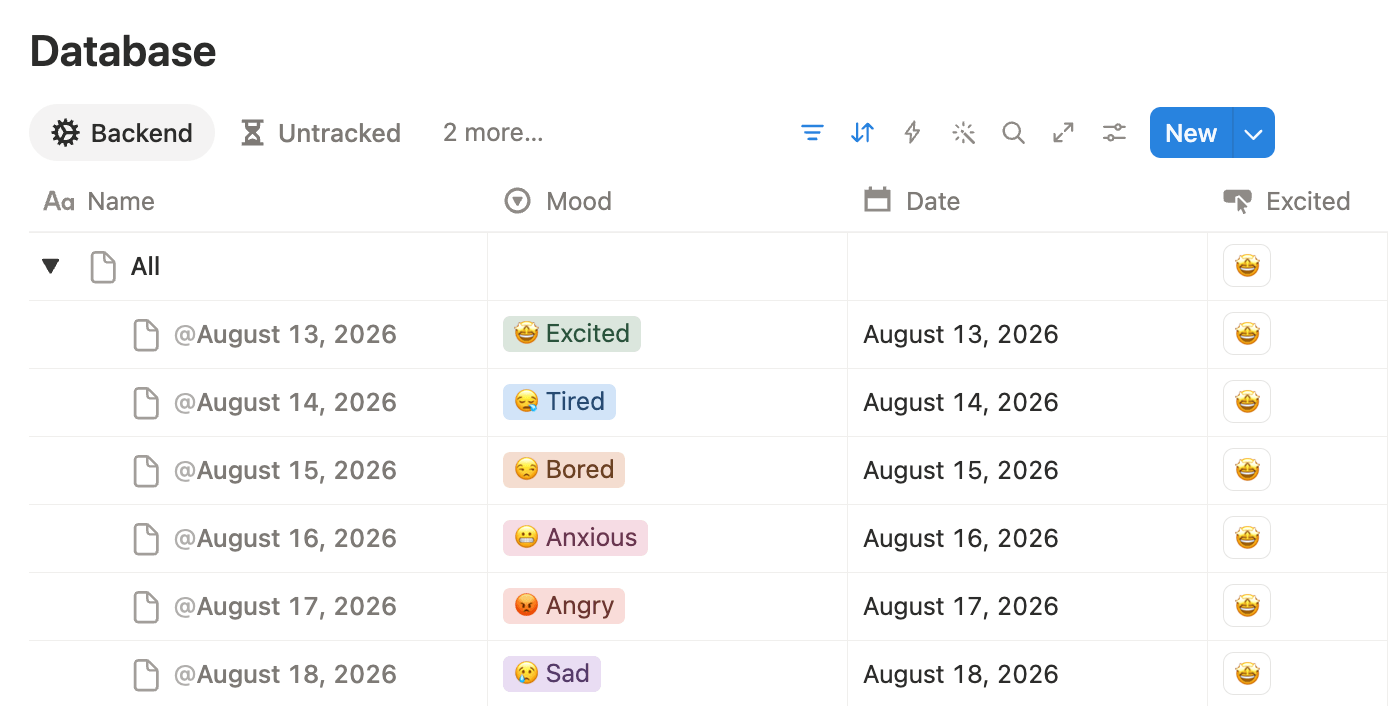
Click the small arrow next to the blue New button, then select Empty.
A new page will be created in your database. Rename it All, and don’t change anything else.
From now on, this page will contain every other page in your mood tracker. It won’t change the way you use the tracker, but this parent-and-sub-item structure is required for the monthly recap to work.
If your database already contains daily entries, drag and drop each one inside the All page so that they become sub-items.
3. Add a Type property
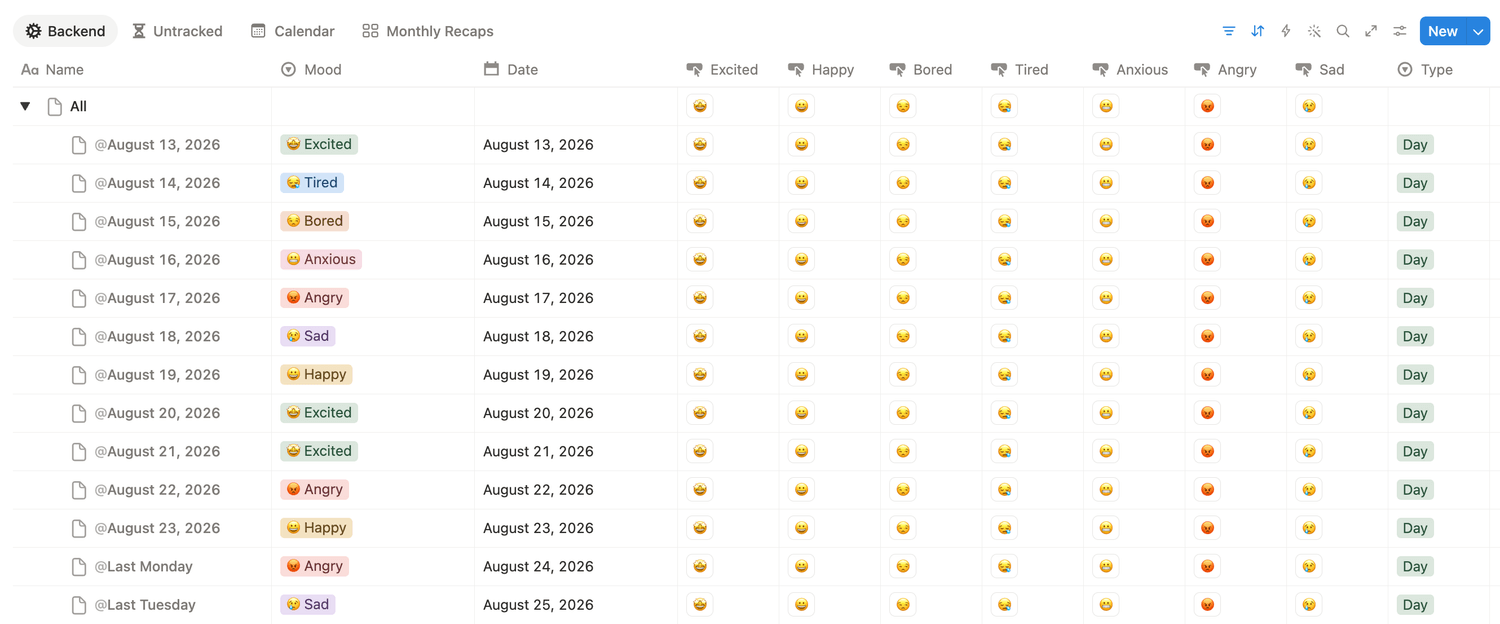
Once all your existing entries are nested inside All, add a new Select property and name it Type.
Create two options: Day and Month.
If your database already contains daily entries, assign the Day option to all of them. Leave the All page unchanged.
You won’t need to interact with this property during your daily use of the tracker. It simply helps the monthly recap identify which pages are daily entries and which ones are monthly summaries.
4. Update the @Today template
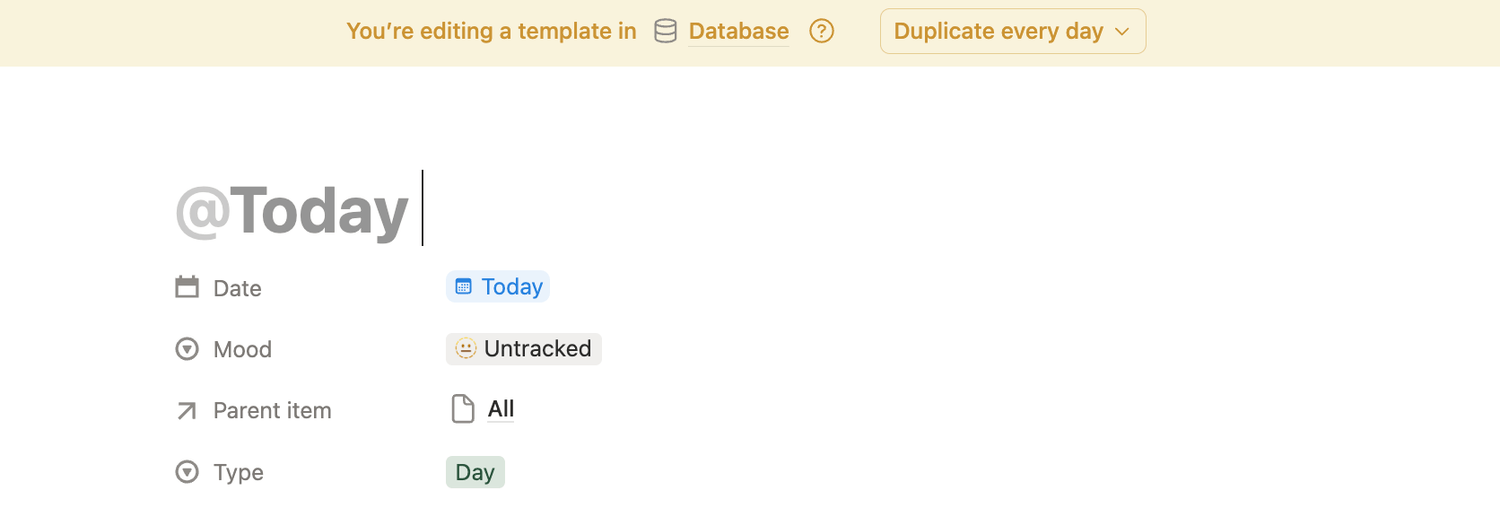
Click the small arrow next to the blue New button again. Find your @Today template, click the three dots next to it, and select Edit.
Update the template so that:
👉 Parent item is set to All
👉 Type is set to Day
The changes will be saved automatically. Once you’re done, click outside the pop-up to return to the database.
Every new daily entry created from this template will now be correctly nested inside All and labeled as a Day.
5. Create the Recap template
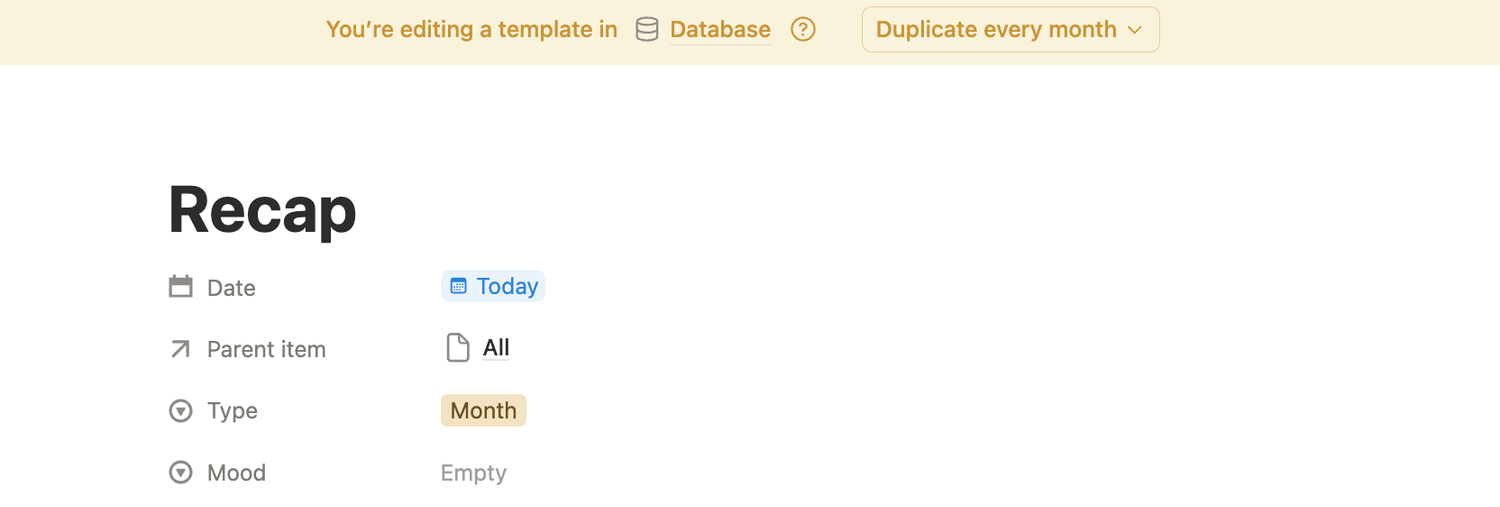
Click the arrow next to New one more time, then select New template. Rename the template Recap and configure its properties as follows:
👉 Date: Today — date when duplicated
👉 Parent item: All
👉 Type: Month
Then, click Duplicate every in the yellow bar at the top of the page. Select Month, keep the default settings, and save the automation. Once everything is set, click outside the pop-up.
From now on, a new monthly recap will be created automatically on the first day of every month. It will appear inside the All page, just like your daily entries.
Again, this won’t change the way you use your mood tracker day to day. The recap will simply be generated in the background.
6. Add the monthly recap formula
Next, add a new Formula property to your database. Copy and paste the formula below into the formula editor:
if(prop("Type") != "Month" or empty(prop("Date")) or empty(prop("Parent item")), "", lets(monthStart, dateSubtract(prop("Date"), date(prop("Date")) - 1, "days"), daysInMonth, dateBetween(dateAdd(monthStart, 1, "month"), monthStart, "days"), monthEntries, prop("Parent item").first().prop("Sub-item").filter(current.prop("Type") == "Day" and not empty(current.prop("Date")) and year(current.prop("Date")) == year(monthStart) and month(current.prop("Date")) == month(monthStart)), weeks, [0, 1, 2, 3, 4, 5].map(lets(weekIndex, index, [" Mo ", " Tu ", " We ", " Th ", " Fr ", " Sa ", " Su "].map(lets(dayNumber, weekIndex * 7 + index + 2 - day(monthStart), dayLabel, if(dayNumber < 10, "0" + format(dayNumber), format(dayNumber)), moodForDay, monthEntries.filter(date(current.prop("Date")) == dayNumber).map(current.prop("Mood")).first(), ifs(dayNumber < 1 or dayNumber > daysInMonth, style(" ", "c"), moodForDay == "🤩 Excited", style("▲ " + dayLabel, "c", "b", "green", "green_background"), moodForDay == "😀 Happy", style("▲ " + dayLabel, "c", "b", "yellow", "yellow_background"), moodForDay == "😒 Bored", style("▼ " + dayLabel, "c", "b", "orange", "orange_background"), moodForDay == "😪 Tired", style("▼ " + dayLabel, "c", "b", "blue", "blue_background"), moodForDay == "😬 Anxious", style("▼ " + dayLabel, "c", "b", "pink", "pink_background"), moodForDay == "😡 Angry", style("▼ " + dayLabel, "c", "b", "red", "red_background"), moodForDay == "😢 Sad", style("▼ " + dayLabel, "c", "b", "purple", "purple_background"), style(" " + dayLabel, "c", "gray", "gray_background")))).join(" "))).join("\n"), style("🗓️ " + formatDate(monthStart, "MMMM YYYY"), "b") + "\n\n" + [" Mo ", " Tu ", " We ", " Th ", " Fr ", " Sa ", " Su "].map(style(current, "c", "b", "gray", "gray_background")).join(" ") + "\n" + weeks))
⚠️ For the formula to work correctly, all your properties and Select options (inside Mood and Type) must use exactly the same names as the ones in this tutorial.
If you used different names, update the corresponding references in the formula to match your own setup.
Your automatic monthly recap is now ready.
7. Create a monthly recap view
Now, let’s create a dedicated view where you can easily browse all your monthly summaries.
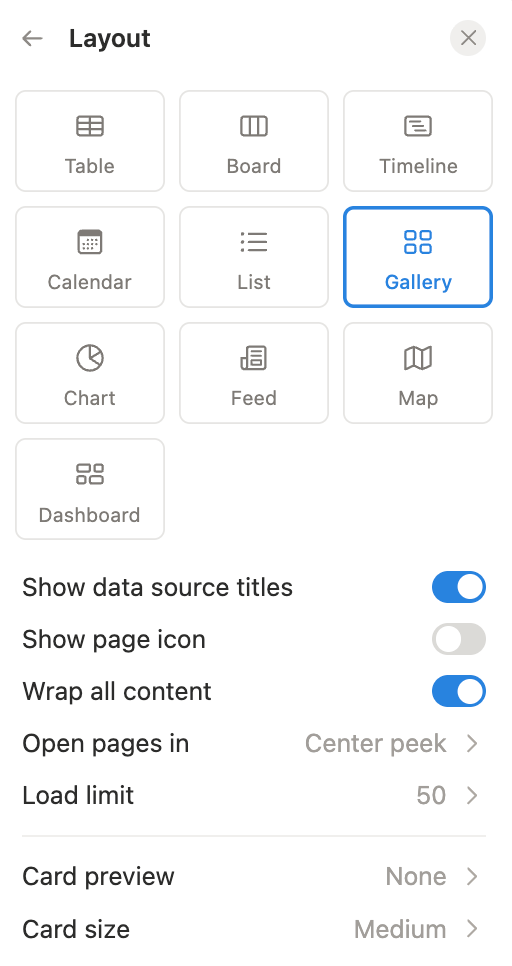
Click the + icon next to your last database view to add a new one, then select Gallery as the layout. Configure the gallery as follows:
👉 Turn off Show page icon
👉 Turn on Wrap all content
👉 Set Card preview to None
👉 Rename the view Monthly Recaps
Click Done.
8. Configure your monthly recap view
8.1. Configure property visibility
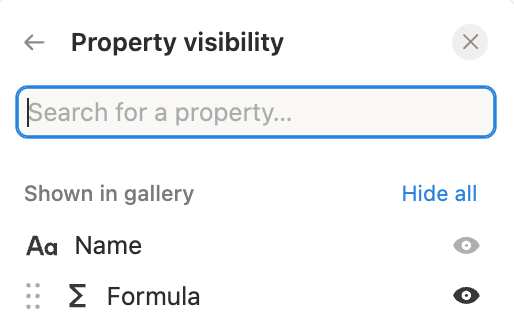
Stay in the view settings and open Property visibility.
Hide every property except the Formula property. This keeps each gallery card clean and ensures that the monthly mood calendar remains the focus.
8.2. Disable sub-items in the gallery
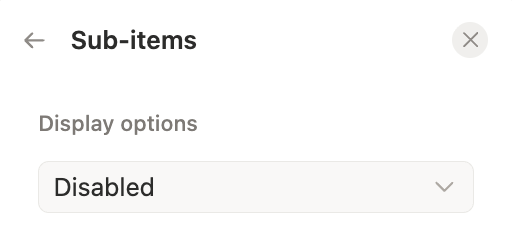
Return to the main settings menu, open Sub-items, and set the display option to Disabled.
The database still uses the parent-and-sub-item structure in the background, but it won’t be displayed in this gallery view.
Ps: you can do the same for your Untracked view.
8.3. Filter the view to show recaps only
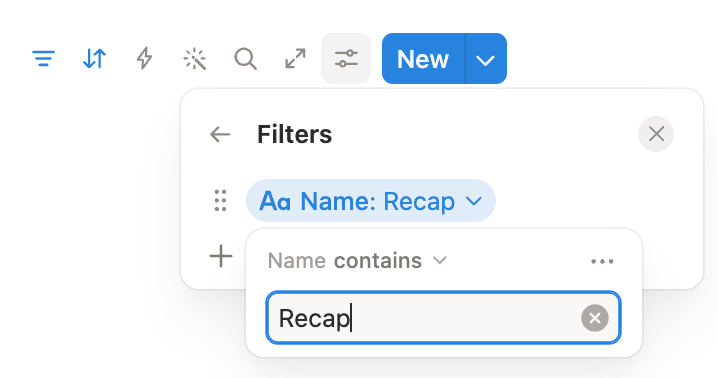
Go back to the main settings menu once more and open Filter. Choose the Name property and configure the filter as follows: Name contains Recap.
This ensures that the gallery displays only your monthly recap pages.
8.4. Sort the summaries by date
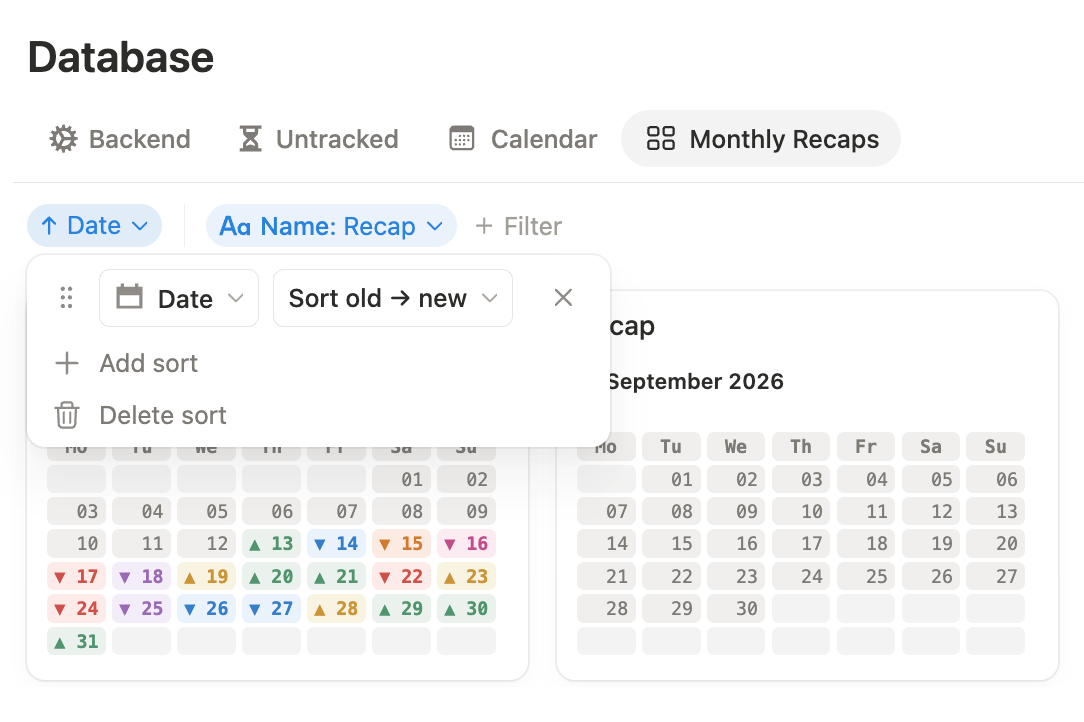
Finally, click the Sort icon at the top of the view and sort the cards by Date.
Your monthly recaps will now appear in chronological order.
9. Your complete Notion mood tracker
That’s it! 🥳 Your mood tracker is now complete.
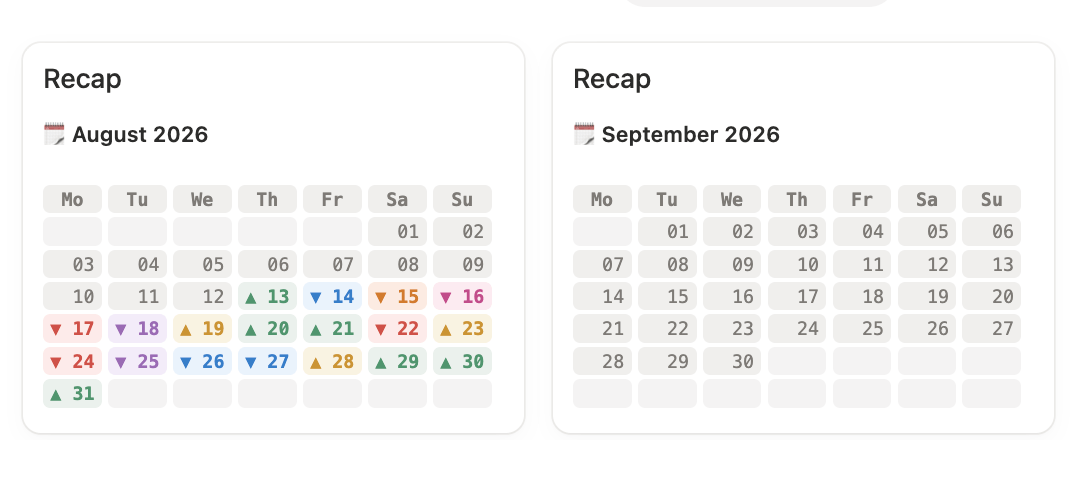
You can log your mood every day in one click, review your entries in a calendar, and get an automatic visual recap at the beginning of every month. The system works quietly in the background while keeping your daily workflow simple.
Latest blog posts
notion by moona
High-quality Notion workspaces for entrepreneurs with high standards.